Monitoring Profile: Notifications
Use this function to send a report to the configured users, roles, groups, or departments.
|
1.
|
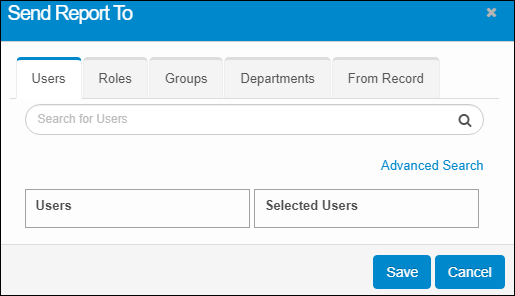
In the Notification section, click Add. The Send Report To dialog box displays. By default, the Users tab is selected. |
|
2.
|
For the Users, Roles, Groups, Departments or From Record tabs, do the following (and a selection on every tab is not required): |
|
a.
|
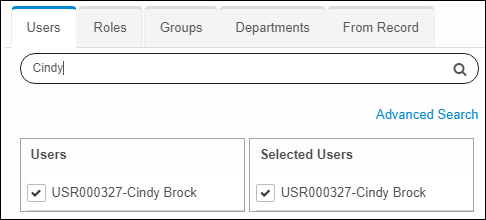
Search for the applicable user, role, group department or record by typing characters in the Search field. |
|
b.
|
If a user, role, group, department or record is found, a list of results displays. |
|
c.
|
Click in the selection box. The dialog box refreshes and the user, role, group department or record is added. |
|
3.
|
Repeat the process to add more users, roles, groups, departments or records. |
|
4.
|
When all selections are made, click Save. The selected information is added to the Notifications section. |
|
5.
|
To update any of the notification selections, click Update, make the applicable changes, and click Save. |
|
6.
|
Click the links below to complete the other sections on this window. |
|
7.
|
When all selections/entries are made, click Add. |
Related Topics