Importing a Juniper Mist Record
Use this function to import Juniper Mist resources into the Discovery application.
-
Open the Import From Juniper Mist page.
-
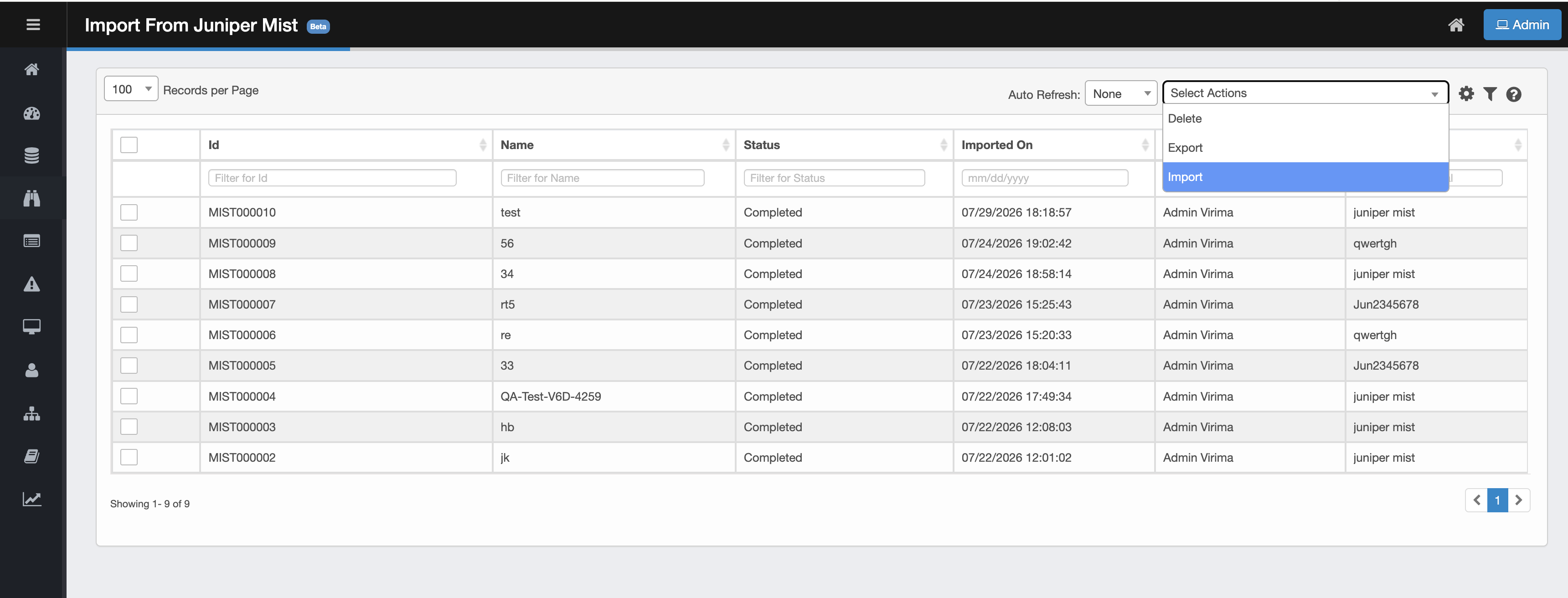
From the Select Actions drop-down list, choose Import.
-
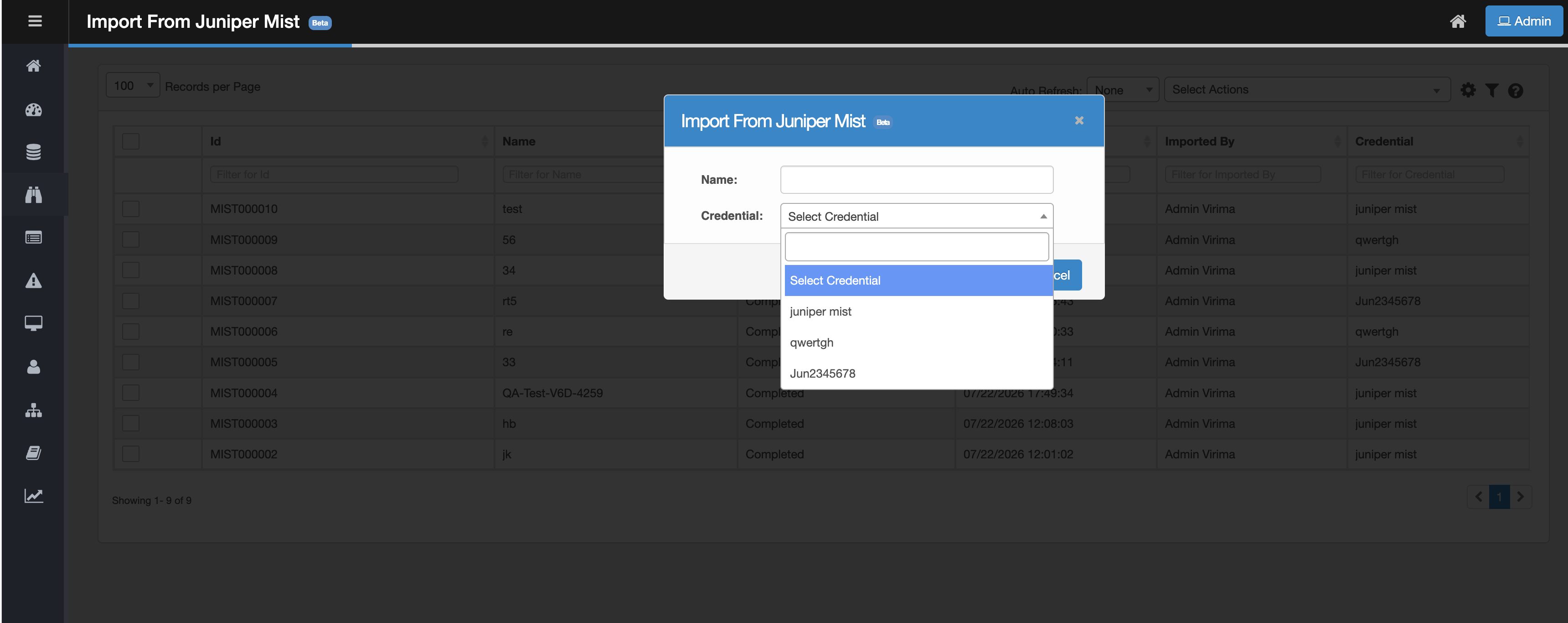
The Import From Juniper Mist dialog box displays.
-
In the Name field, enter a name for this import action.
-
In the Credential field, select the appropriate Juniper Mist credential from the dropdown. Only Active Juniper Mist credentials are shown, and the credential already carries the End Point and API Key configured in Admin > Credentials.
-
If no credentials are listed, navigate to Admin > Credentials to add one first.
-
-
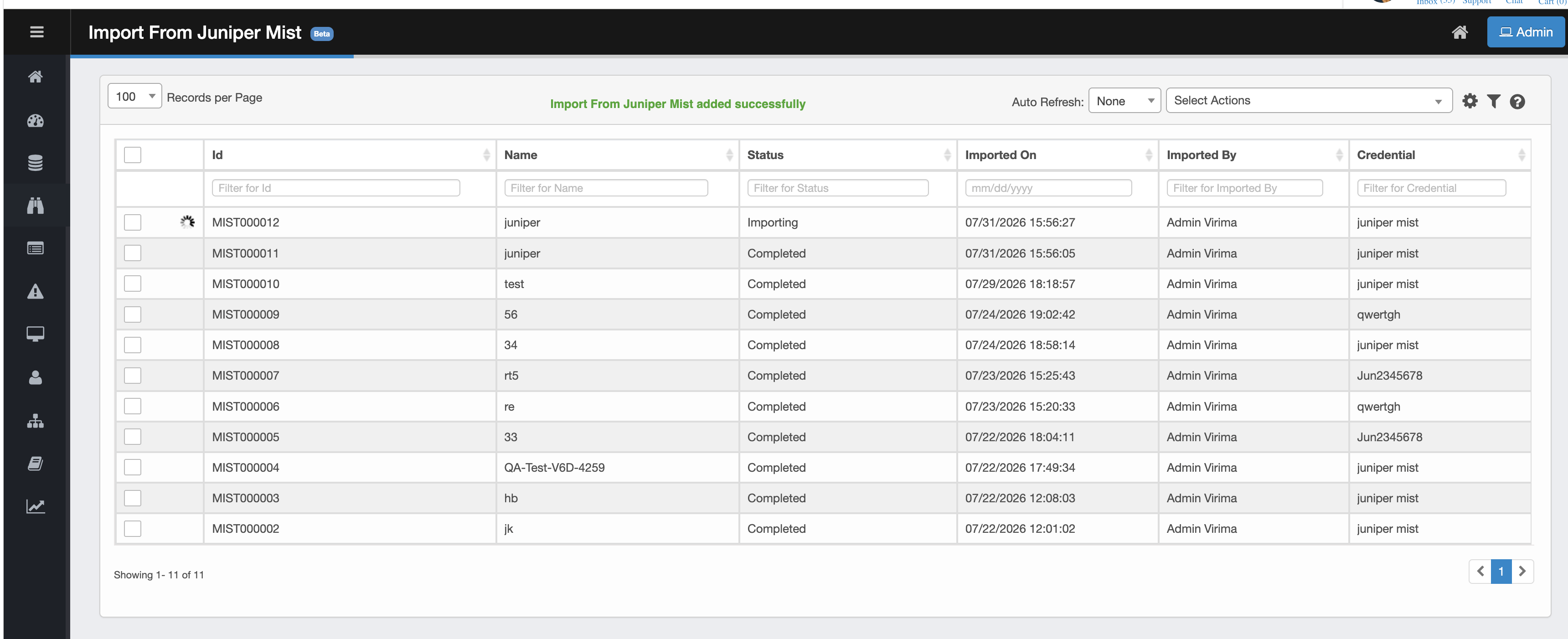
Click Add to begin the import. Virima shows the message "Import From Juniper Mist added successfully" and redirects you to the Import From Juniper Mist list page, where the new record appears with Status: Importing.
Note:
-
Once the status changes to Completed, click the record to view the imported Mist resources.
-
No Organization, Site, or blueprint selection is available in the import dialog. Clicking Add imports every Organization and Site the credential's token can access, along with their Network Devices. To change scope, use a credential with different access.
-
Clicking Add without entering a Name or without selecting a Credential displays an error message, and the import is not initiated.
-
If an import is already in progress for a credential, starting another import with that same credential is blocked with "An import is already in progress for this credential."
-
If a credential's token becomes invalid or expires after it was saved (for example, if it is revoked in Mist), a run using that credential shows "Invalid API Token" and its status shows Failed.
-
If a scheduled import's next trigger fires while the previous run for that same credential is still in progress, the new run is skipped and logged as "Skipped - Previous Import Still Running" rather than started at the same time. It is not marked Failed.
Related Topics