Import SSL Certificate to Agent
Use this function to share a trusted certificate - for example, an internal certificate authority or proxy certificate - with every Agent connected to this Discovery Application, so those Agents know to trust it.
-
Open the Virima Discovery Application.
-
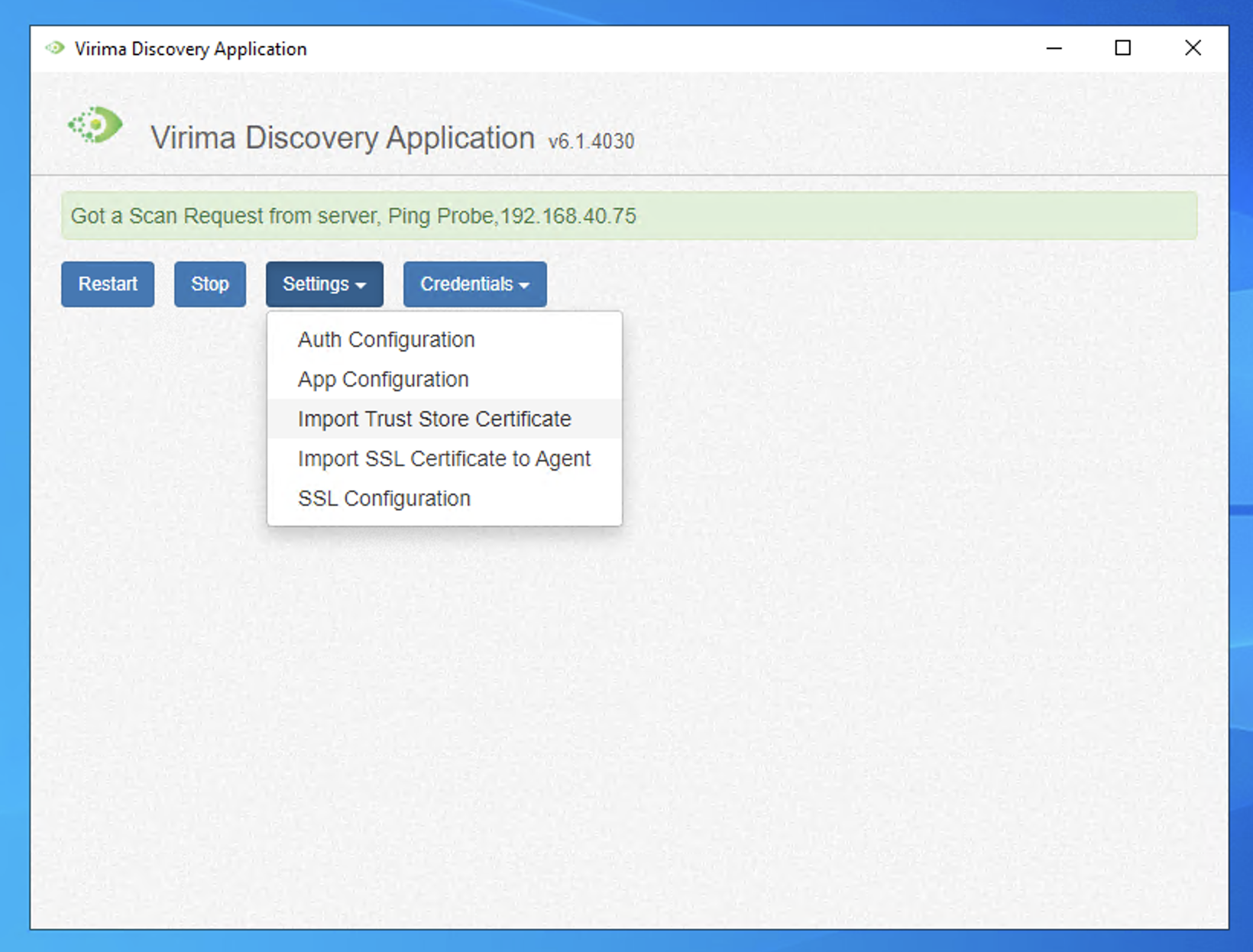
Go to Settings > Import SSL Certificate to Agent.
-
Paste the certificate text provided by your certificate issuer into the Certificate Body field, then click Next.
If the pasted text cannot be read as a valid certificate, a message explains why, and nothing is distributed.
-
Review the certificate details on the confirmation screen - who the certificate is for, its supporting names, and its valid dates, including a clear mark if it is already expired.
-
Click Confirm & Distribute. The certificate is queued for delivery to every connected Agent, and a success message displays.
To view the certificates already shared with Agents, click Distributed Certificates at any time. Each entry shows whether it is currently Active or Expired.
| Once an Agent has been told to trust a distributed certificate, that trust is never automatically removed - not even if the certificate is later deleted from the Discovery Application. Agent trust only ever grows. |
Related Topics