Import Trust Store Certificate
Use this function to make the Discovery Application trust the certificate authority (CA) that signs the certificates used by target machines for secure PowerShell (WinRM over SSL/TLS) connections. Importing the CA's certificate is required before Discovery can make secure PowerShell connections to those machines.
-
Open the Virima Discovery Application.
-
Go to Settings > Import Trust Store Certificate.
-
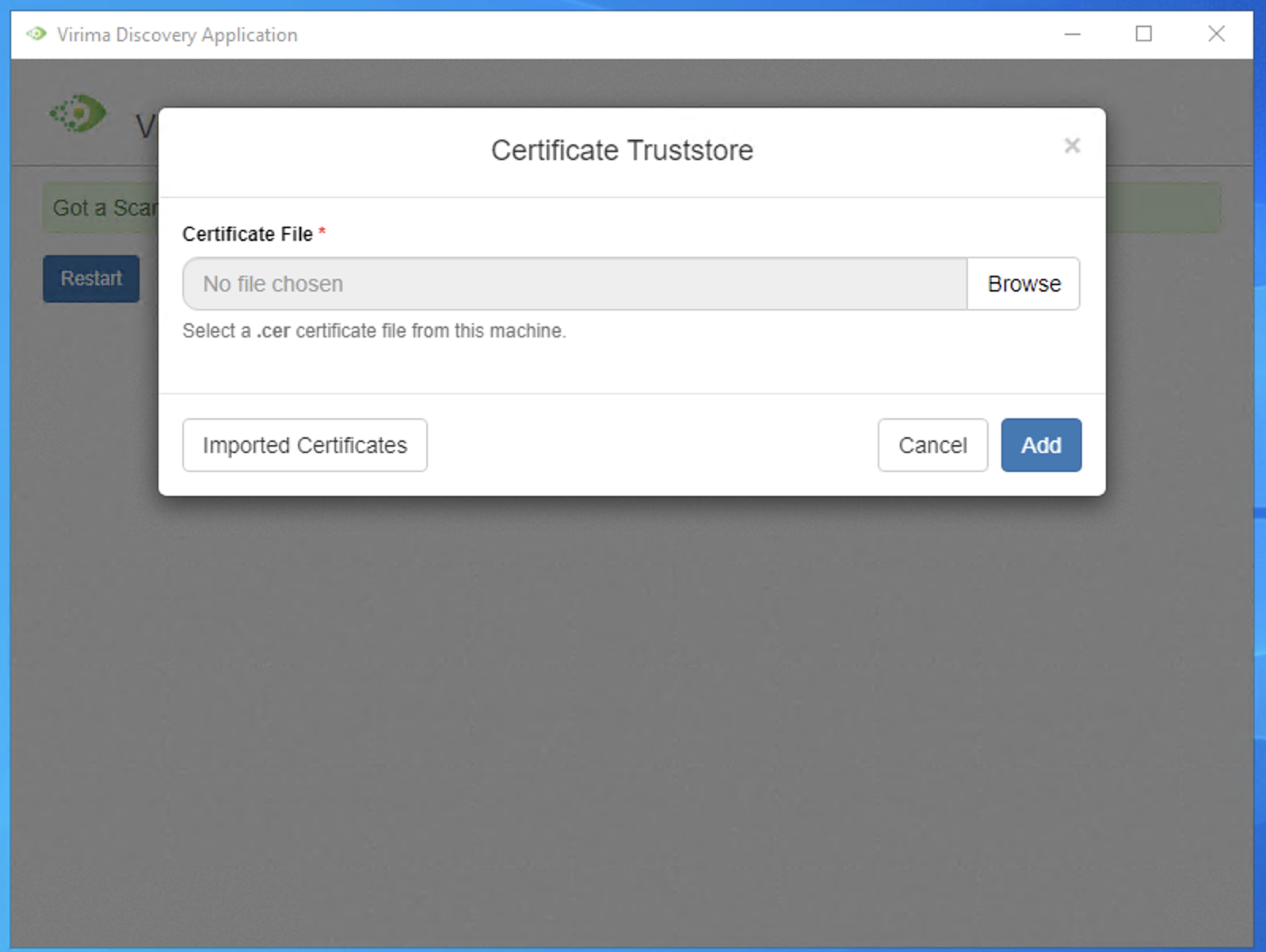
Click Browse and select the .cer certificate file provided by your certificate authority.
-
Click Add.
On success, the Discovery Application imports the certificate into the local machine's trusted root store and shows "Trust store certificate added successfully." Otherwise, a specific message explains why the import could not complete:
-
"Discovery application should be running to import a trust store certificate." The Discovery Application is not running.
-
"Please select a certificate file." No file was selected.
-
"Only .cer files are supported." The selected file is not a .cer file.
-
"Trust store certificate addition failed: <details>." The import into the certificate store failed.
| This option is available on Windows installations of the Discovery Application only, since it imports the certificate into the Windows certificate store. Administrator privileges on the Discovery Application machine may be required. |
Related Topics