Viewing Support Requests
The Support page organizes support requests into two main views such as My Requests and All Requests. These tabs help you focus on your own items or review organization-wide activity.
My Requests tab
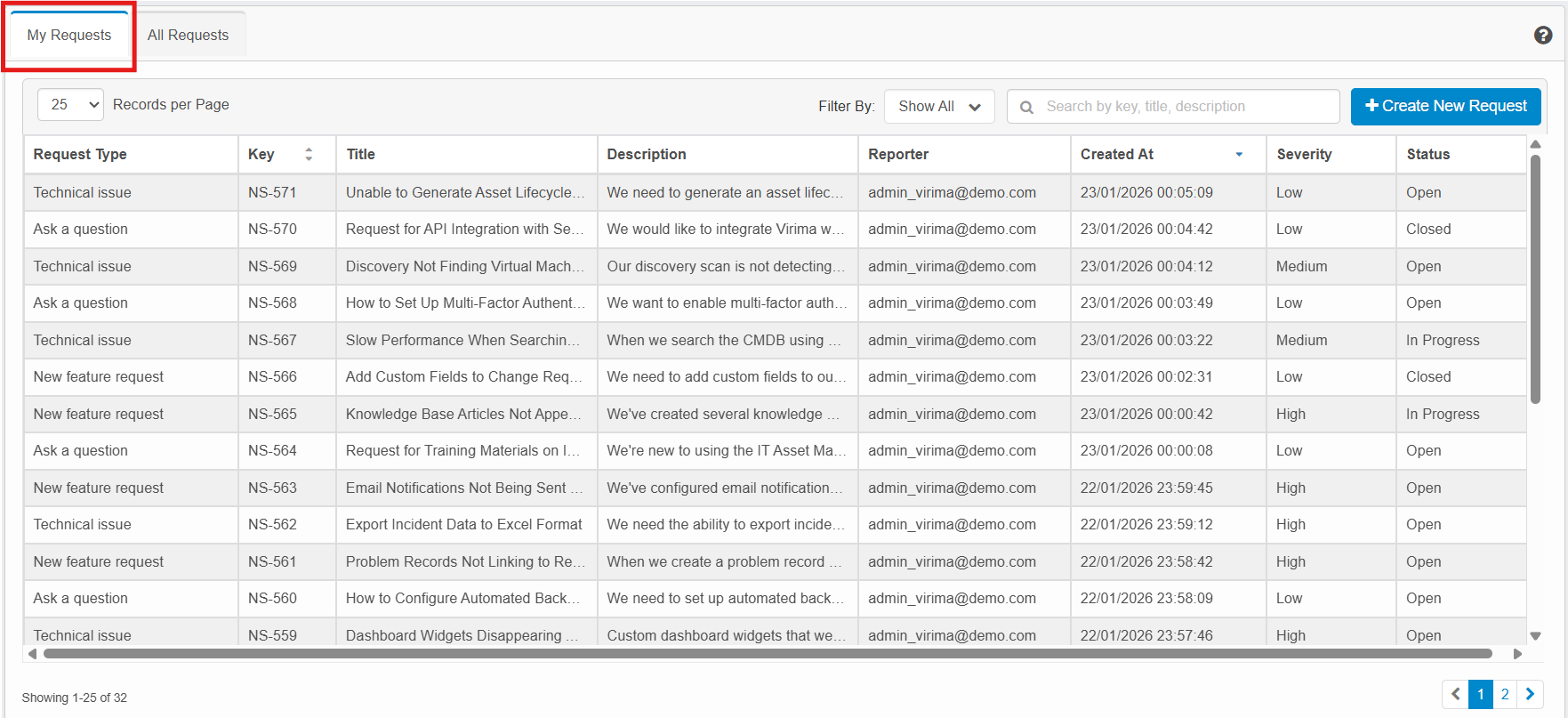
The My Requests tab displays all support requests that you have created or that are assigned to you. This is the default view when you first open the Support page. This view shows only requests associated with your user account. When there are no matching records (due to filters, search, or no data), the grid shows the message No Records found and the footer displays Showing 0-0 of 0.
View your personal requests
-
Access the Support page.
-
Click the My Requests tab.
-
Review the table to see all requests that you have created or that are assigned to you.
My Requests view
-
Table columns
-
Request Type – Category or classification of the request. Available options are Ask a question, New feature request, and Technical issue.
-
Key – Unique identifier for each request.
-
Title – Request subject or short description.
-
Description – Brief summary of the issue or request.
-
Reporter – Email address of the user who created the request.
-
Created At – Date and time when the request was created.
-
Severity – Defines the priority level. Available options are Low, Medium, High, and Blocker.
-
Status – Defines the current status of the request. Status options may vary. Some of the available options are Open, Triage, New Requirement, In Progress, Pending, Done, Reopened, and Duplicate.
-
-
Request data: Only requests that you created or that are assigned to you.
-
Pagination: If you have more than 25 requests, pagination controls appear below the table.
Key features of My Requests
-
This is the default view when accessing the Support page and displays only your personal requests.
-
This view helps you monitor the status and severity of your own issues so that you can track progress and follow-up actions.
All Requests tab
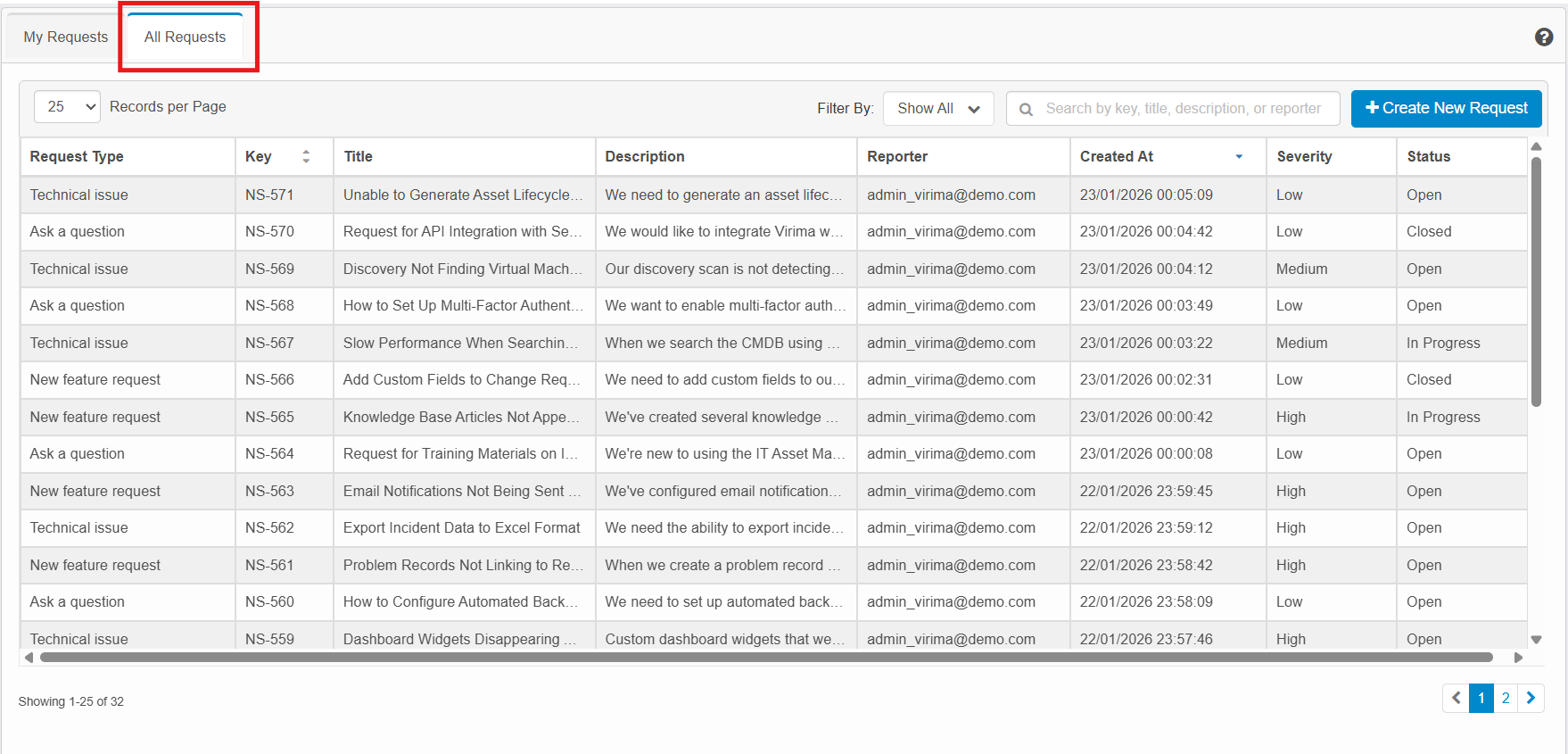
The All Requests tab displays all support requests within your organization. This view is useful for managers, administrators, or users who need broader visibility into support activities. When there are no matching records (due to filters, search, or no data), the grid shows the message No Records found and the footer displays Showing 0-0 of 0.
View organizational requests
-
Access the Support page.
-
Click the All Requests tab next to My Requests.
-
Confirm that the All Requests tab is highlighted with a blue underline.
-
Review the table to see all requests across your organization.
All Requests view
-
Table columns
-
Request Type: Category or classification of the request. Available options are Ask a question, New feature request, and Technical issue.
-
Key: Unique identifier for each request.
-
Title: Request subject or short description.
-
Description: Brief summary of the issue or request.
-
Reporter: Email address of the user who created the request.
-
Created At: Date and time when the request was created.
-
Severity: Defines the priority level. Available options are Low, Medium, High, and Blocker.
-
Status: Defines the current status of the request. Status options may vary. Some of the available options are Open, Triage, New Requirement, In Progress, Pending, Done, Reopened, and Duplicate.
-
-
Request data: All support requests across your organization, including items created by or assigned to other users.
-
Pagination: If there are more than 25 requests, pagination controls appear below the table, showing ranges such as Showing 1–25 of 126.
Key features of All Requests
-
Provides organization-wide visibility into all support requests.
-
Shows requests from all team members, not just your own.
-
Helps identify patterns, recurring issues, or high-volume topics.
-
Supports managers and administrators in planning and prioritizing support activities.
Note:
-
Use My Requests to focus on tracking and managing your own support requests.
-
Use All Requests to review organization-wide activity and identify common issues or trends.
Request Details
The Request Details page opens when you click a request row in the My Requests or All Requests tab. It shows full information about a single support request, including details, comments, and attachments.
-
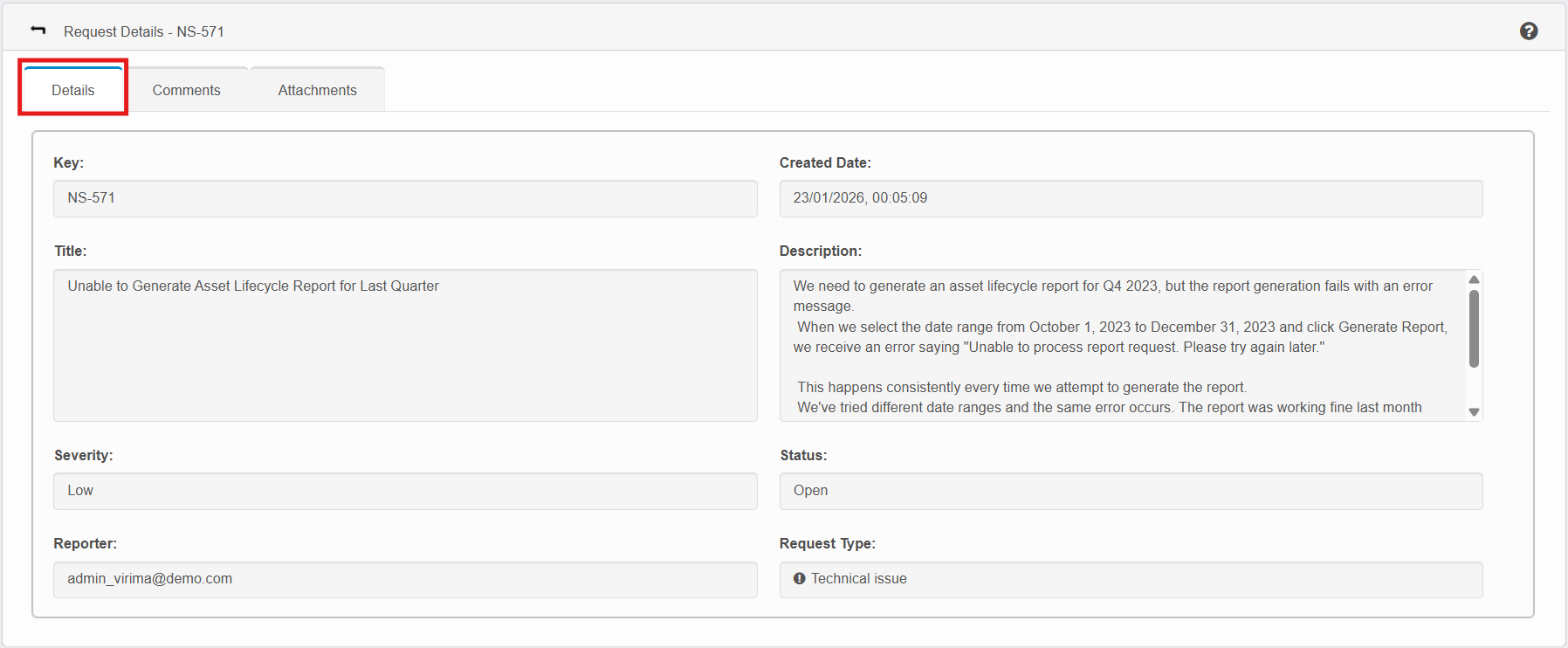
The page header shows Request Details – <Key> (for example, Request Details – NS-571).
-
A back arrow in the upper-left corner returns you to the previous request list.
-
Three tabs are available:
-
Details – displays the main request information.
-
Comments – displays discussion associated with the request.
-
Attachments – displays files uploaded to the request.
-
Details tab
The Details tab is selected by default when you open a request.
Key
-
Displays the unique identifier of the request (for example, NS-571).
-
Read-only.
Title
-
Shows the short subject or name of the request.
-
Matches the Title column in the request table.
-
Read-only on this page.
Severity
-
Shows the priority level for the request (for example, Low, Medium, High, and Blocker).
-
Matches the Severity column in the request table.
-
Read-only on this page.
Reporter
-
Displays the email address of the user who created the request (for example, admin_virima@demo.com).
-
Read-only and derived from the user’s account.
Created Date
-
Shows when the request was created, in DD/MM/YYYY HH:MM:SS format (for example, 16/01/2026, 15:41:02).
-
Read-only.
Description
-
Shows the full description of the issue or request.
-
Long text that may be truncated in the list view is fully visible here.
-
Read-only on this page.
Status
-
Shows the current workflow state of the request. Available options are Open, Triage, New Requirement, In Progress, Pending, Done, Reopened, and Duplicate.
-
Matches the Status column in the request table.
-
Read-only on this page.
Request Type
-
Displays the category or classification of the request (for example, Ask a question, New feature request, and Technical issue).
-
May display with an information icon next to the label.
-
Read-only.
Comments tab
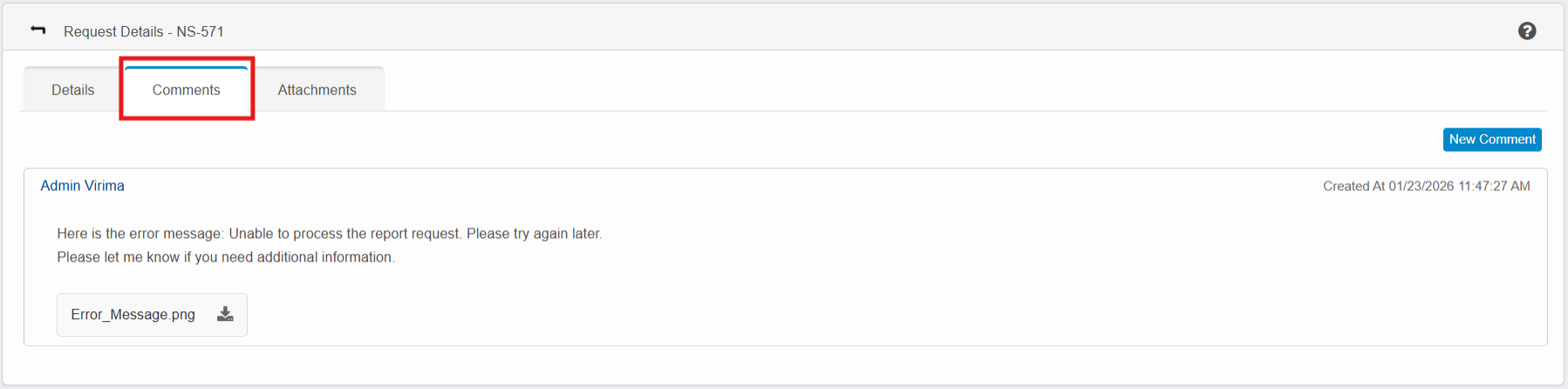
The Comments tab shows the conversation related to the request.
-
Displays a list of comments in chronological order, including author and timestamp.
-
If there are no comments, the message No comments found is displayed.
-
A New Comment button appears on the right side. Clicking it lets you add a new comment (based on your permissions).
Attachments tab
The Attachments tab shows files linked to the request.
-
Lists all files attached to the request, including file name and basic metadata (where applicable).
-
If no files are attached, the message No Attachments found is displayed.
-
When adding attachments (from the create or edit interfaces), you can upload up to 5 files. The total size of all selected files must not exceed 25 MB.
-
When creating a request or adding comments, only specific file formats are allowed for attachments. The following tables list supported and unsupported formats.
Supported formats
| Category | Formats |
|---|---|
| Documents | PDF, DOC, DOCX, TXT |
| Images | PNG, JPG, JPEG, GIF |
| Spreadsheets | CSV, XLS, XLSX |
Not supported (rejected)
| Category | Formats |
|---|---|
| Executables / Scripts | EXE, BAT |
| Archives | ZIP, RAR |
| Media | MP4, MP3 |
| Presentations | PPTX |
| Web / Code | HTML, JS |
