Filtering and searching requests
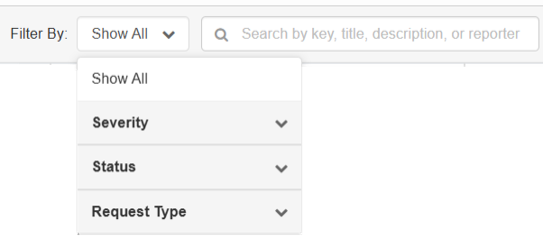
Filtering and search tools help you focus on the most relevant requests. You can filter by Severity, Status, and Request Type and search across multiple fields.
Filter by Severity
-
Filters requests by their business impact or urgency.
-
Location: My Requests or All Requests tab > Filter By drop-down > Severity.
-
Available options: Low, Medium, High, and Blocker.
-
When you select a severity value, only requests with that severity are displayed in the list.
-
To remove this filter and view all requests, set Filter By back to Show All.
Filter by Status
-
Filters requests by their current workflow state.
-
Location: My Requests or All Requests tab > Filter By drop-down > Status.
-
Available options are Open, Triage, New Requirement, In Progress, Pending, Done, Reopened, and Duplicate.
-
When you select a status value, only requests with that status are displayed in the list.
-
To remove this filter and view all requests, set Filter By back to Show All.
-
Filters requests by their current workflow state.
Filter by Request Type
-
Go to the Support page.
-
Choose either My Requests or All Requests tab.
-
Locate the Filter By drop-down above the request table.
-
Click the Filter By drop-down to open the list of options.
-
Under Request Type, select one of the following:
-
Ask a question
-
New feature request
-
Technical issue
-
-
Review the table:
-
Only requests matching the selected Request Type are displayed.
-
-
To clear the filter and see all requests again, open the Filter By drop-down and select Show All.
Filter by Show All
-
Displays all requests, without applying any Severity, Status, and Request Type filter.
-
Location: All Requests tab > Filter By drop-down > Show All.
-
Use this option to reset filters and see the full list of requests after filtering by Severity, Status, and Request Type.
Searching for requests
The search field provides a quick way to locate specific requests across multiple data fields. Search is applied in real time as you type.
-
Go to the Support page. Find the search bar on the support page.
-
In either the My Requests or All Requests tab, when you type a keyword in the search bar and press Enter key, Active Search is applied.
-
You can Search by key, title, description, or reporter. You can search with reporter on the All Requests tab only.
-
Observe the table is updated with the records and displays the matching requests only. Review the results and adjust your search terms as needed.
-
To clear Active Search and return to the full list:
-
Delete the text from the search bar and press Enter key, or
-
Click the clear (X) icon to remove the active search results. The table refreshes to show all requests, subject to any other filters.
-
Fields included in search
Search typically applies to the following fields:
-
Key – Request identifier (for example, NS-571, NS-570).
-
Title – Request title or subject.
-
Description – Request description and details.
-
Reporter – Email address of the user who created the request. This is applicable for All Requests tab only.
Search tips
-
Search by full or partial request key (for example, NS-571).
-
Use keywords from the title or description (for example, “import”, “error”, “scan”).
-
Partial matching is supported. For example, “imp” returns results containing “import”.
-
Enter multiple words to narrow results (for example, “import meraki”).
-
Clear the search field and press Enter key to return to the full request list.
Sort requests to review them faster
-
Click the Key column header to sort by request ID (for example, NS-571, NS-570).
-
Click the Created At column header to sort by creation date and time.
-
Sort indicators (up/down arrows) show the current sort direction.
-
Use sorting together with filters (for example, Status = Open and sort by Created At) to quickly see the oldest or newest open items.
