Programs
Use this function to manage several related projects.
In the main window, select Program and Project Management > Programs.
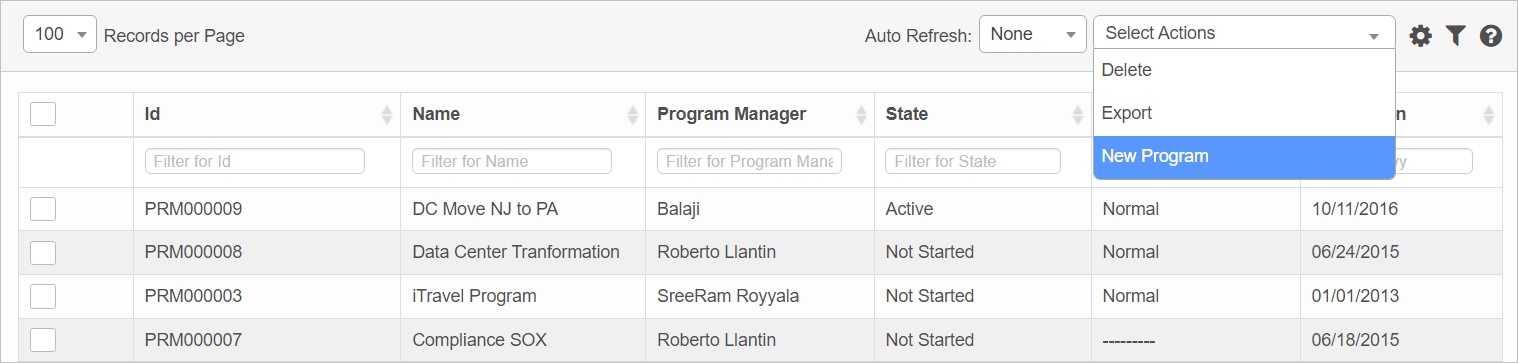


 New Program
| 1. | From the Select Actions drop-down list, choose New Program. |
| 2. | Complete the fields, referring to the table below. |
| 3. | When all selections/entries are made, click Add. |
Program Fields
| Field | Description |
|---|---|
| Name | A generic name given to the program. |
| Description | Give a brief description about the program. |
| Program Manager | The role responsible for overseeing the ongoing/ completion of the program. |
| Project Template | Associate the project template. |
| Status |
Indicates the current state of the program. Critical: Specifies that the program is critical in nature.
At Risk: Specifies that the program is associated with some risks.
Normal: Specifies that the program is not associated with risks.
|
| State |
Indicates the current state of the program. Not Started: The default state of the program.
Active: Indicates that the program is still ongoing.
Suspended: Indicates that the program was suspended or canceled due to some reasons.
Completed: Indicates that the program is completed.
|
| Program Start Date Program End Date |
Dates on which the program starts and ends. |
| Cost Center | The business unit for which cost of the program is charged. |
| Percentage Completion |
The percentage of the program that is completed. |
| Project |
Associates a project(s) to a program. |
Program Heat Map
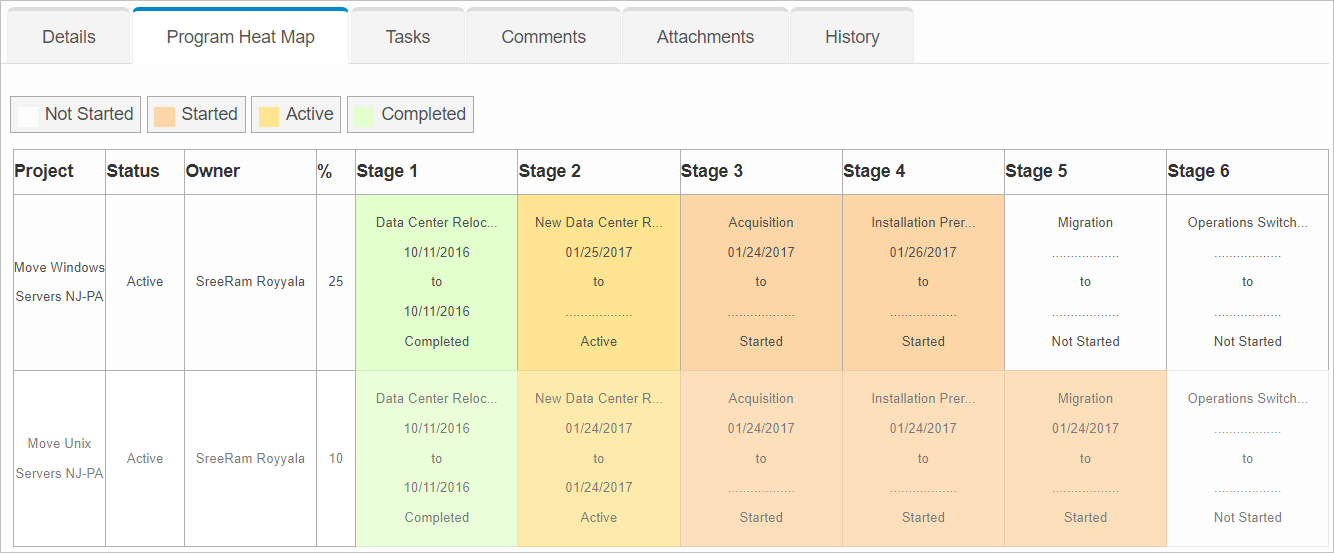
Use this function to view the phase status of associated project(s). If a phase status is changed, or if a new phase has been added/deleted to the associated project, then the change gets updated.
While viewing the Details tab, click the Program Heat Map tab.
V6 isn't working. Just using the image for v5 as it's somewhat generic.
Edit Program| Not all functions include an option to edit record line items shown in the main window. |
| 1. | Navigate to the window containing the record to edit. |
| 2. | Click the line containing the record. The applicable window or dialog box displays. |
| 3. | Make the necessary modifications. |
| 4. | Click Save or Add, as applicable. |
When editing an existing item, other options may be available, such as adding Tasks, Comments, and Attachments and viewing History.
| The options change based upon the function; therefore, not every option may be shown. |
Delete Program
| Deleting is a permanent action and cannot be undone. Deleting may affect other functionality and information in the application such as data in configured reports, fields in windows, selectable options, etc. Therefore, be sure to understand the potential effects before making a deletion. |
| 1. | Click the line that contains the item to delete. |
| 2. | From the Select Actions drop-down list, choose Delete. If a confirmation message is displayed, type Delete and click Deleteto confirm. |
Other Functions and Page Elements