Upgrade Agent
Update from Virima UI
Use the following procedure to update one or more agents from the Virima UI.
-
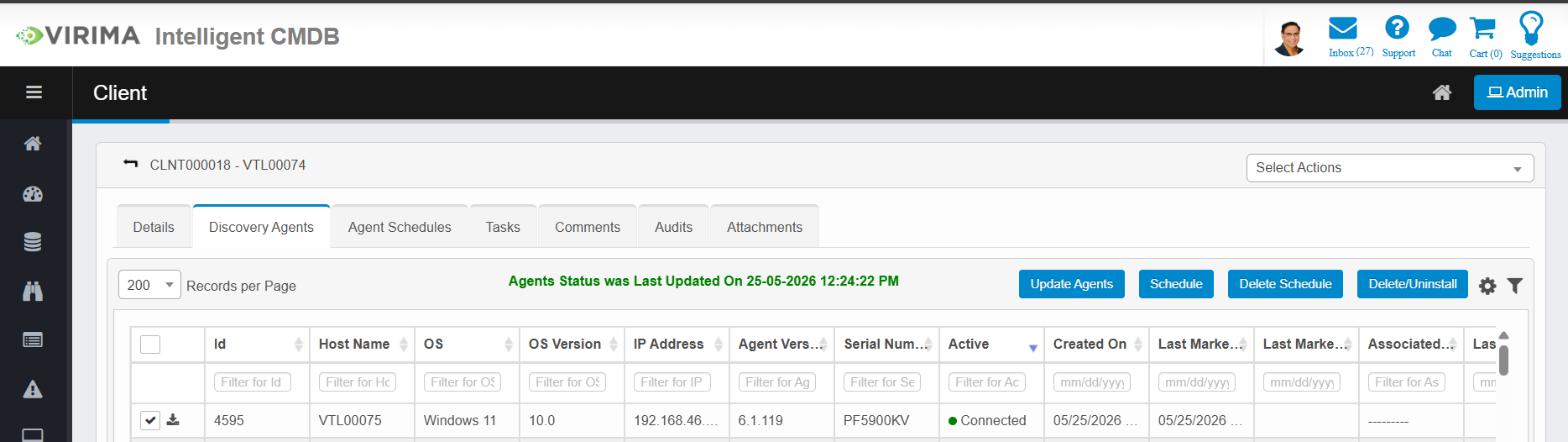
Go to the Discovery Application's agent list.
-
Select the agent or agents you want to update using the checkboxes. To update all agents at once, leave none selected.
-
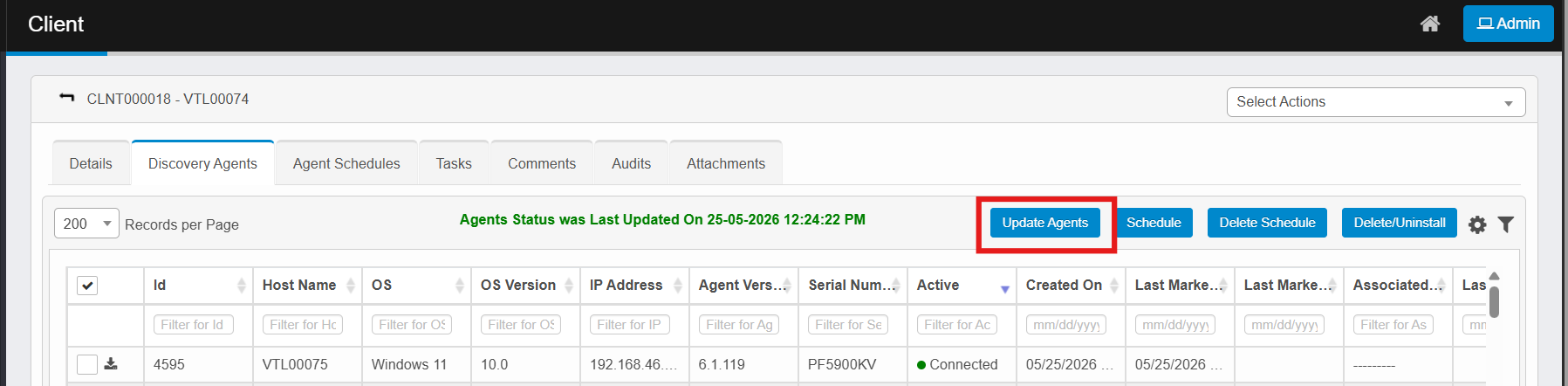
Click the Update Agents button.
-
A confirmation message appears: "Agent(s) will be updated in background."
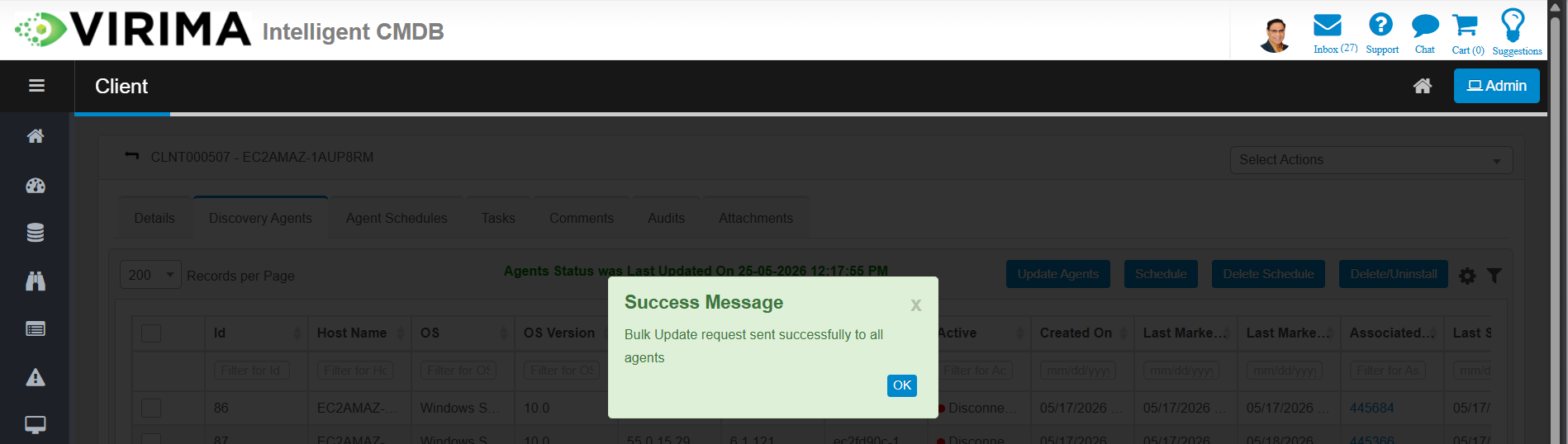
Note: The system automatically determines which agents need the update and pushes it to them. Agents are updated in the background, so there is no need to wait.
Automatic Update (No User Action Needed)
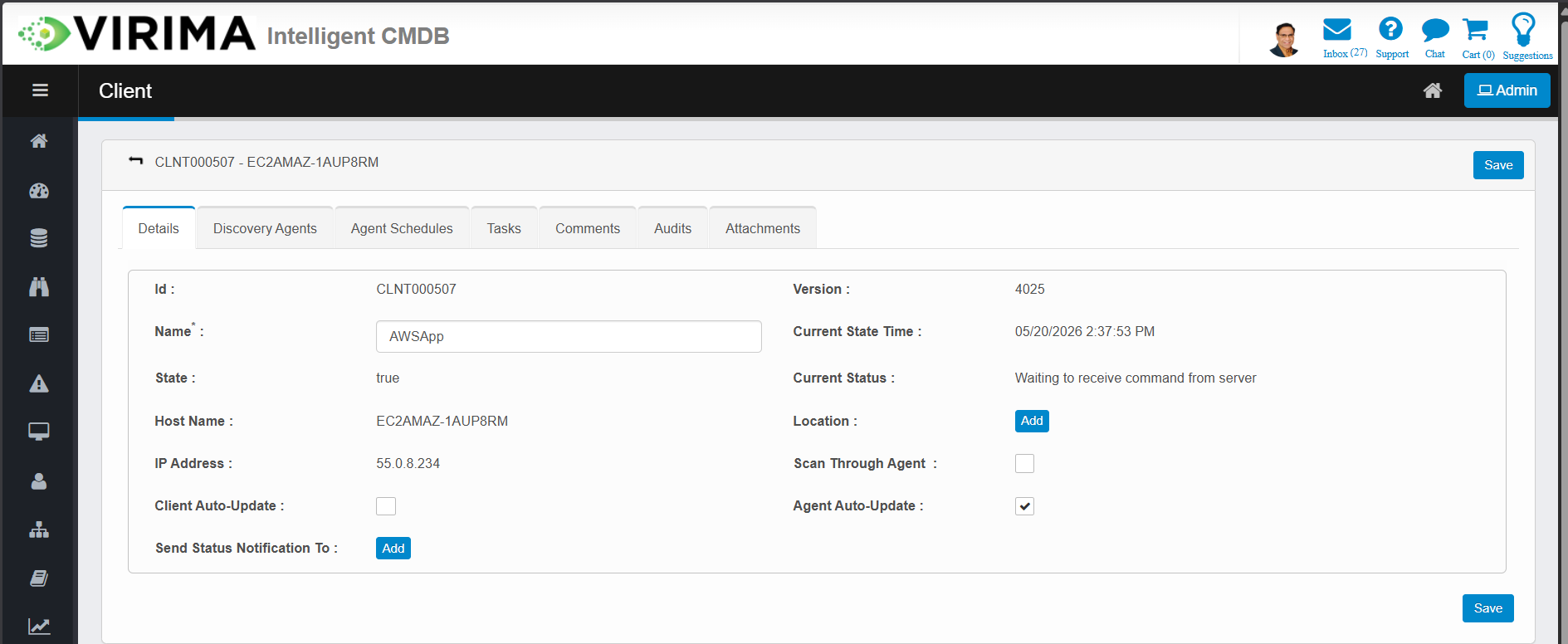
If Auto Update is enabled in the Discovery Application settings, agents check for new versions and update themselves without any manual intervention.
When the agent detects that version 6.1.122 is available, it performs the following actions:
-
Downloads the update from the server.
-
Applies the update.
-
Restarts itself.
This happens seamlessly in the background.
Update Check Interval
-
Auto-update check: Each agent checks for available updates once every 24 hours.
Quick Reference
| What you want to do | How to do it |
|---|---|
| Install or reinstall via UI | Build Agent > Install Agent > enter the target IP. |
| Reinstall an existing agent via UI | Same as above, with the Reinstall if Exists checkbox selected. |
| Install or reinstall manually | Download the installer and run it on the target machine. |
| Upgrade agents to 6.1.122 | Select agents in the UI and click Update Agents. |
| Upgrade automatically | Enable Auto Update in the Discovery Application settings. |
| Uninstall agents | Select agents in the UI and click Delete or Uninstall. |
Good to Know
-
No downtime concerns: Agent updates take only a few seconds. The agent restarts automatically after the update.
-
Incremental updates: If an agent is on 6.1.120, it automatically receives any intermediate updates (such as 6.1.121) before reaching 6.1.122. All updates are handled in one go.
-
Bulk operations: Both update and uninstall support bulk operations. You can act on all agents at once or pick specific ones.
-
No rollback: If something goes wrong, you can reinstall the agent using the methods described above.
-
Proxy support: Agents behind a proxy can still receive updates. Proxy settings are configured in the agent's properties.