| |
Not all functions include an option to edit record line items shown in the main window. |
|
1.
|
Navigate to the window containing the record to edit. |
|
2.
|
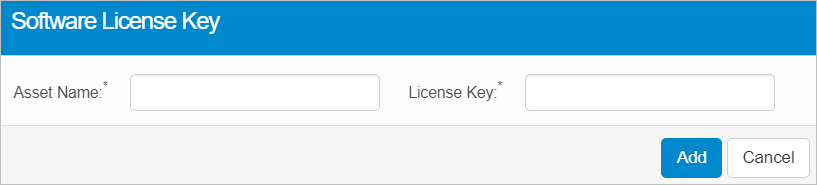
Click the line containing the record. The applicable window or dialog box displays. |
|
3.
|
Make the necessary modifications. |
|
4.
|
Click Save or Add, as applicable. |
The following information and sub-functions are shown in this window:
Used On. Lists the assets with the corresponding Software License key.
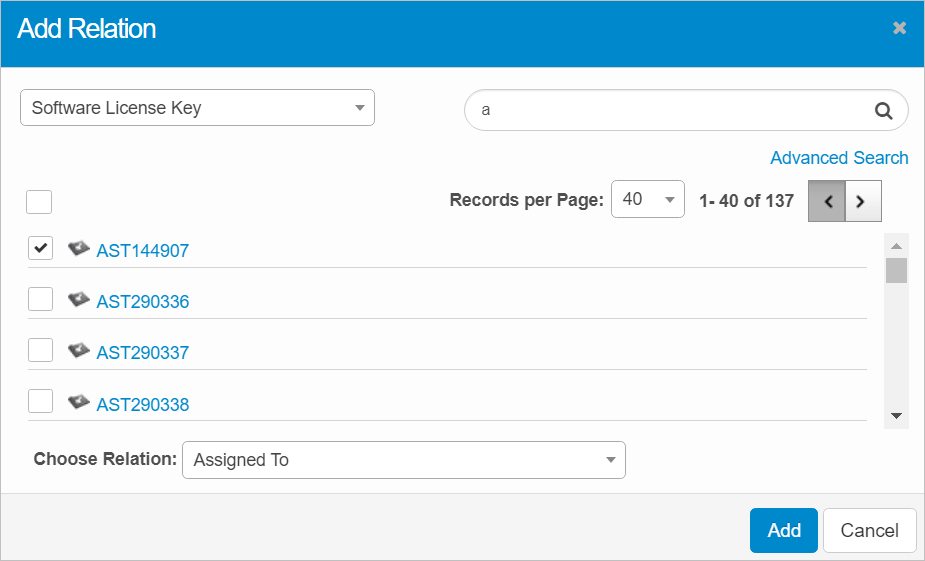
Relationships. Relates the software asset to an existing Source and Target and view the Business Service Map.
|
a.
|
Click the Add Source or Add Target button. The Add Relation dialog box displays. |
|
b.
|
Select the blueprint, and search for the applicable asset. |
|
c.
|
In the Choose Relation field, click the drop-down list and choose the relation. |
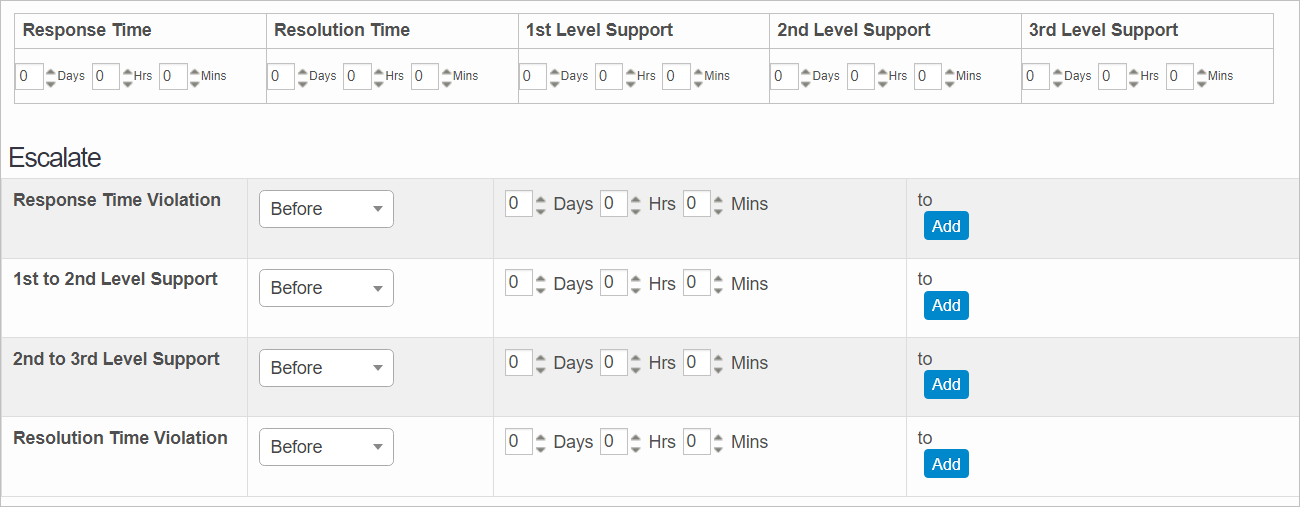
SLA. Configures response and resolution times for the Software License Key if marked as Incident, Requests, Changes, or Problems for resolution. Specify the Response and Resolution Time as well as the Support Levels. Then, configure the Escalate parameters.
Maintenance. Set of activities defined to conserve an asset in its original condition.
Refer to CI: Maintenance.
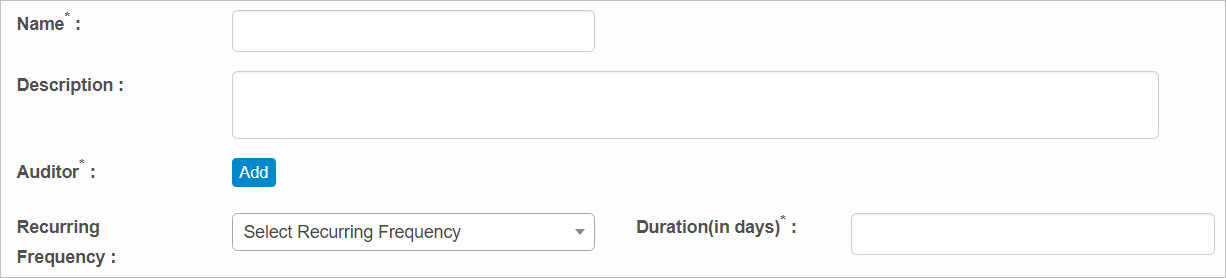
Audits. Analyzes the product or its process to assess compliance with defined specifications or the standards of the deliverable.
To add an Audit:
|
a.
|
Click the Add Audit button. |
|
b.
|
Enter a Name and Description. |
|
c.
|
In the Auditor field, click Add, then search for and select a user to function as the Auditor. |
|
d.
|
Select the Recurring Frequency. |
|
e.
|
Enter the Duration (in days) to indicate the length of time for the audit. |
|
f.
|
When all selections/entries are made, click Add. |
When editing an existing item, other options may be available, such as adding , , and and viewing .
| |
The options change based upon the function; therefore, not every option may be shown. |

 New Software License Key