New Requested Items
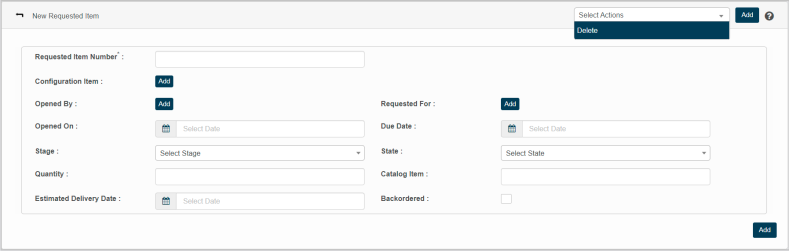
This feature enables the addition of required items to be requested with appropriate details.
|
1.
|
Choose New Requested Item option from Select Actions drop down. The New requested Item page displays. |
|
2.
|
Enter the total number of the requested item types in the Requested item Number box. |
|
3.
|
Click Add to update Configuration Item details. |
|
4.
|
Click Add to update the name of the user-initiated for the requested item. |
|
5.
|
Click Add to update the name for the Requested For (purpose for requesting the corresponding item). |
Instructions:
|
a.
|
Enter the search criteria in the given text box, and then click search icon. |
|
b.
|
The results are displayed as per the given search criteria. |
|
c.
|
Select a required value, and then click Save. |
|
d.
|
Click Cancel to discard the action, and in continuation no value will be selected. |
Reference : Click the link for https://wiki.virima.com/wiki/doku.php?id=advanced_search_page for Advanced Search instructions// Unsure if this text had to be added.
|
6.
|
Click Opened On text box to select request item initiation date. |
|
7.
|
Click the Due Date text box to select the last date to provide the requested item. |
|
8.
|
Select the stage name of the request process from the Stage dropdown. |
|
9.
|
Select the state name of the request process from the State dropdown. |
|
10.
|
Enter the total quantity of the requested Item in the Quantity box. |
|
11.
|
Enter the name of the catalog item in the Catalog Item box. |
|
12.
|
Click the Estimated Delivery Date text box to select a date for delivering requested items. |
|
13.
|
Check the Backordered option if the corresponding service cannot be fulfilled at the current time. it affect the amount of time it takes before the customer eventually receives the ordered product/service. |
|
14.
|
Click Add to update Requested Item as per given details. |