New Purchase Order
Use this feature to configure the details of the purchase of products or services.
|
1.
|
In the main window, select ITAM > Procurement > Purchase Order. The Purchase Order window displays. |
|
2.
|
From the Select Actions drop-down list, select New Purchase Order. |
|
3.
|
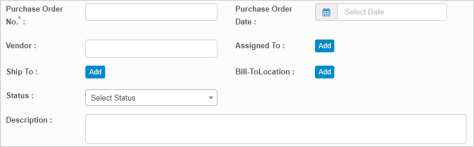
In the information section, enter the following: |
Purchase Order No. Type the purchase order number. This is a required field.
Purchase Order Date. Click the calendar icon and select the date.
Vendor. Enter the name of the vendor.
Assigned To. Click Add and select the person to whom the purpose order is assigned.
Ship To. Click Add and enter the address where the item is to be shipped.
Bill To Location. Click Add and enter the address where the bill is to be sent.
Status. Click the drop-down list and select a status for the purchase order--for example, Ordered, Received, and so forth.
Description. Enter information about this purchase order.
General
|
1.
|
Select type required shipping from Shipping dropdown. |
|
2.
|
Select terms of shipping payment from Terms dropdown. |
|
3.
|
Enter total shipping price in the Ship Rate box. |
|
4.
|
Enter the total cost of shipping and billing in the Total Cost box. |
Details
|
1.
|
Enter the name of the user-initiated. |
|
2.
|
Enter the name of the contract in the Contract name box. |
|
3.
|
By default logged in user name displays in the Requested box. |
|
4.
|
Click Add to update the corresponding Department. |
|
5.
|
Enter the budget for the requested PO. |
|
6.
|
Enter vendor account details in the Vendor Account box. |
|
7.
|
Enter//This step is incomplete in WIKI |
|
8.
|
Click Requested Date text box to select purchase order date. |
|
9.
|
Click Expected Delivery Date text box to select a date to deliver the product. |
|
10.
|
Click Ordered On text box to select the date on which the product/service is being ordered. |
|
11.
|
Click Add to update the corresponding PO. |