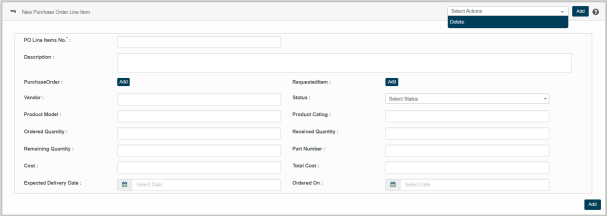
New Purchase Order Line Items
This feature enables to enter Purchase Order Line Item details as per given parameters in the application.
|
1.
|
Choose New Purchase Order Line Item option from Select Actions drop down. The New Purchase Order Line Item page displays. |
|
2.
|
Enter Purchase Order Line Item number in the PO Line Items box. |
|
3.
|
Enter the additional information of the PO Line Items in the description box. |
|
4.
|
Click Add to update Purchase Order details. |
|
5.
|
Click Add to update Requested Item details. |
Instructions
|
a.
|
Enter the search criteria in the given text box, and then click search icon. |
|
b.
|
The results are displayed as per the given search criteria. |
|
c.
|
Select a required value, and then click Save. |
|
d.
|
Click Cancel to discard the action, and in continuation no value will be selected. |
Reference : Click the link for https://wiki.virima.com/wiki/doku.php?id=advanced_search_page for Advanced Search instructions
|
6.
|
Enter the name of the vendor in the Vendor box. |
|
7.
|
Select the relevant status of the PO Line Item from the Status dropdown. |
|
8.
|
Enter the model name of the product in the Product Model box. |
|
9.
|
Enter the name of the product catalog in the Product Catalog box. |
|
10.
|
Enter the total number of quantities ordered in the Ordered Quantity. |
|
11.
|
Enter the total number of the quantity received after ordering in the Received Quantity box. |
|
12.
|
Enter the total number of quantities remaining in the Remaining Quantity box. |
|
13.
|
Enter product identifier number in the Part Number box. |
Note: A part number is an identifier of a particular part design used in a particular industry. Its purpose is to simplify reference to that part. A part number unambiguously identifies a part design within a single corporation, and sometimes across several corporations // Should this be a paragraph?
|
14.
|
Enter the cost of the ordered product in the Cost box. |
|
15.
|
Enter the total cost of the Purchase Product/service in the Total Cost box. |
|
16.
|
Click Expected Delivery Date text box to select the date of ordered product delivery. |
|
17.
|
Click Ordered On text box to select purchase ordered date. |
|
18.
|
Click Add to update the PO Line Items in the application. |