New Hardware Asset
This feature enables to configure a Hardware Asset and its details in the application.
|
1.
|
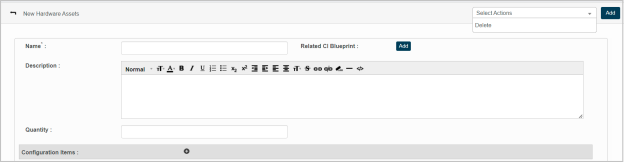
Choose New Hardware Asset option from Select Actions drop-down. The New Hardware Assets page displays. |
|
2.
|
Enter the name of the Hardware in the Name box. |
|
3.
|
Enter additional information to describe hardware assets in the Description box. |
|
4.
|
Enter the total number of the hardware assets in the Quantity page. |
|
5.
|
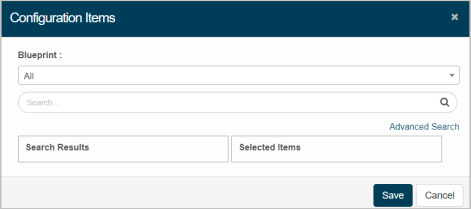
Click the plus sign to associate the required Configuration Items to the corresponding hardware. Configuration Items window displays. |
|
6.
|
Select required Blueprint from the drop down or enter search criteria, and then click. |
|
7.
|
Check to select the required blueprint. |
General:
|
1.
|
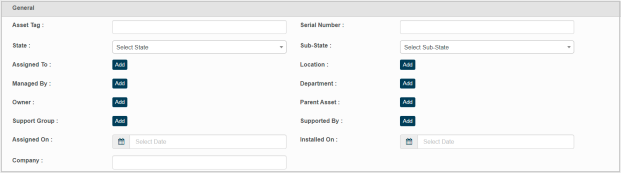
Enter the tag number of the Asset in the Asset Tag box. |
|
2.
|
Select the current state of the Asset from the State drop-down. |
|
3.
|
Select sub-state of the asset from Sub state drop-down. |
Note: Options in the Sub State is as per the selected State.
|
1.
|
Click Add to select values of the following parameters: |
|
2.
|
Click Assigned On text box to select a date for assigning corresponding Hardware asset to the user /department. |
|
3.
|
Click Installed On text box to block a date to install corresponding Hardware. |
|
4.
|
Enter the name of the hardware item manufacturer company name in the Company box. |
Financial:
Select method for hardware asset acquisition from the Acquisition Method drop down.
|
1.
|
Click Add to select values of the following parameters: |
|
2.
|
Enter the accounts(number) used for financial transactions for Hardware assets in the GL Account box. |
|
3.
|
Enter the price of the corresponding hardware asset in the Cost box. |
Disposal:
|
1.
|
Enter reason or justification for disposing of corresponding hardware Asset in the Disposal Reason box. |
|
2.
|
Enter the price to resell the corresponding hardware in the Resale Box. |
|
3.
|
Click Schedule Retirement Date text box to select a date for scheduling hardware retirement. |
|
4.
|
Click Retire Date text box to select hardware asset retirement date. |
Depreciation:
|
1.
|
Enter the depreciated amount of the hardware asset in the Depreciation box. |
|
2.
|
Enter the value of an asset after it has been fully depreciated in the Residual Value box. |
|
3.
|
Click Residual Date, and Depreciation Effective Date text box(s) to select the date accordingly. |
Contracts:
|
1.
|
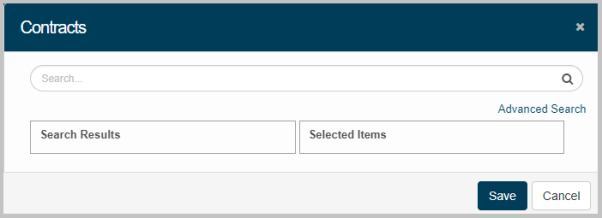
Click plus sign to select the required contracts for the corresponding Hardware Asset. |
|
2.
|
Enter text to search required contracts, and then click search icon. |
|
3.
|
Check to select a required contract. |
|
4.
|
Click Save to update the selected contract in the application. |