CI Financial Plan
In the navigation pane, select ITAM > Financial Management then select CI Financial Plan .

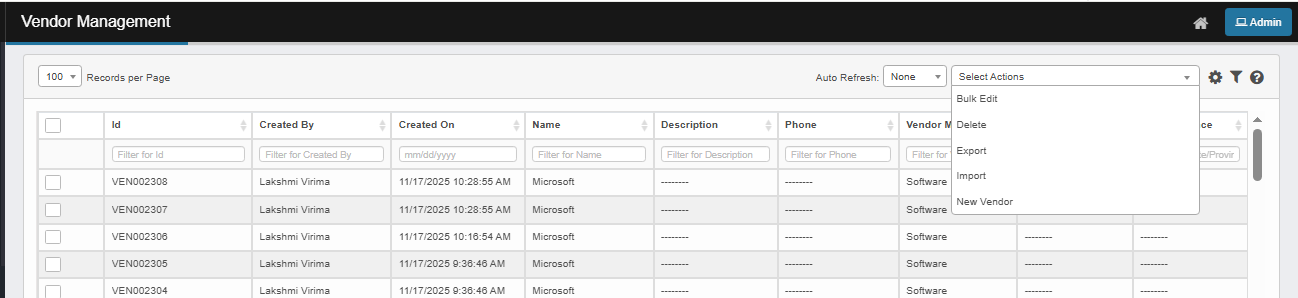

 New CI Financial Plan
| 1. | From the Select Actions drop-down list, choose New CI Financial Plan. The applicable window displays. |
| 2. | Complete the fields referring to the table below. |
| 3. | When all selections/entries are made, click Add. |
CI Financial Plan Fields
| Fields | Description |
|---|---|
| Primary Details |
Name. Enter a name for this Financial Plan. Description. Enter information that describes this financial plan. |
| Record Details |
Start Date/End Date. Select the dates between which this financial plan is active. Status. The status of the financial plan such as Operational, Non-operational, and so forth. Click the drop-down list and select the relevant status. Interval. The frequency at which the cost recurs. Options include Daily, Weekly, and Monthly. Last Processed On. The date and time this cost was last processed. Next Process On. The next date on which new expenses will be processed. Order. The Order of processing the expense. |
| Financial Details |
Base Cost. The amount that must be paid before taxes. Support Cost. Expenses for maintaining or supporting an asset Tax Cost. Total cost of the tax. Total Cost. Total base cost, including taxes. Tax Rate. The tax rate to apply to the cost. Recurring. When selected, indicates whether the cost is a repeating cost. Sales Tax. When selected, indicates whether to apply sales tax to the cost. Associated CI.Click Add, then in the Associate CI dialog box, select a Blueprint, then search for and select the applicable CI. Click Save.
|
Edit CI Financial Plan
| Not all functions include an option to edit record line items shown in the main window. |
| 1. | Navigate to the window containing the record to edit. |
| 2. | Click the line containing the record. The applicable window or dialog box displays. |
| 3. | Make the necessary modifications. |
| 4. | Click Save or Add, as applicable. |
When editing an existing item, other options may be available, such as adding Tasks, Comments, and Attachments and viewing History.
| The options change based upon the function; therefore, not every option may be shown. |
Delete CI Financial Plan
| Deleting is a permanent action and cannot be undone. Deleting may affect other functionality and information in the application such as data in configured reports, fields in windows, selectable options, etc. Therefore, be sure to understand the potential effects before making a deletion. |
| 1. | Click the line that contains the item to delete. |
| 2. | From the Select Actions drop-down list, choose Delete. If a confirmation message is displayed, type Delete and click Deleteto confirm. |
Other Functions and Page Elements