New Contract Management
This feature enables the creation of information and other details of the new contract with the vendor.
|
1.
|
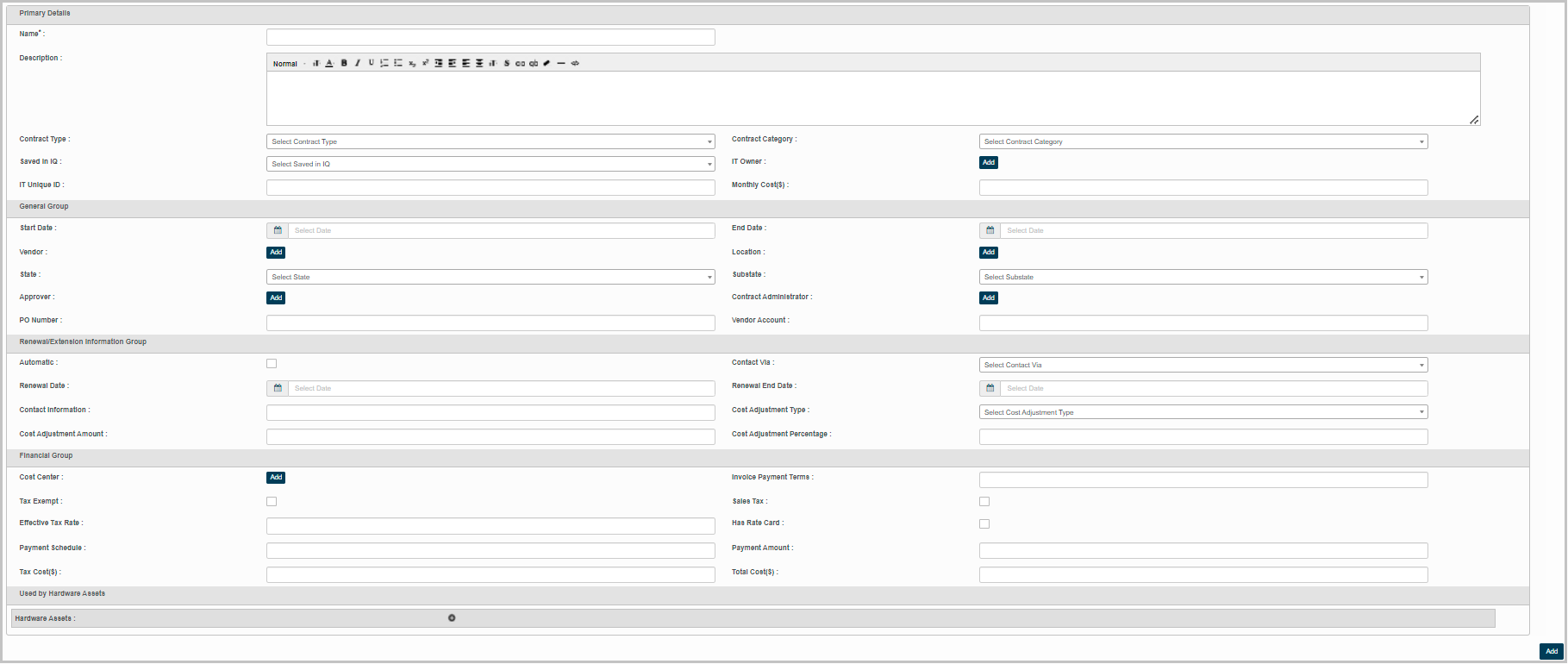
Choose New Contract option from Select Actions drop down. The new Contract page displays. |
Primary Details:
|
1.
|
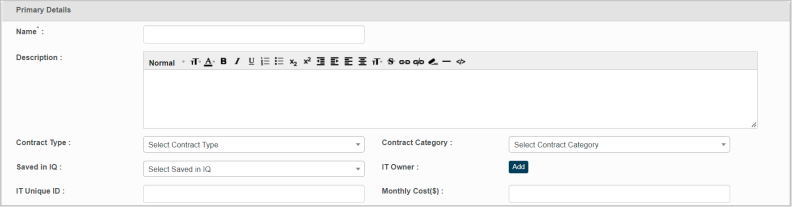
Enter the name for the contract in the Name box. |
|
2.
|
Enter additional information on the corresponding contract in the Description box. |
|
3.
|
Select values for the following parameters from their respective drop down. |
Contract Type -Contract Category -Saved in IQ:
|
1.
|
Click Add to select, and update the IT owner for the corresponding contract in the application |
|
2.
|
Enter ID of the IT owner in the IT Unique ID box. |
|
3.
|
Enter expense of the contract expressed in month's in the Monthly Cost($) box. |
General Group:
|
1.
|
Click Start Date, and End Date text box to select contract initiation and ending date. |
|
2.
|
Enter purchase order number in the PO Number box. |
|
3.
|
Enter vendor account details in the Vendor Account box. |
Renewal/Extension Group:
|
1.
|
Check Automatic option to automatically extend/renew the contract with vendor. |
|
2.
|
Click Renewal Date text box to select the date to renew the contract. |
|
3.
|
Click Renewal End Date text box to select the last date to renew the contract. |
|
4.
|
Enter the contact information of the vendor in the Contact information box. |
|
5.
|
Select type required to adjust the contract cost from Cost Adjust Type drop down. |
|
6.
|
Enter the price that can be adjusted in the Cost Adjustment Amount box. |
|
7.
|
Enter the price adjusted for the cost expressed in percentage in the Cost Adjustment Percentage box. |
Financial Group:
|
1.
|
Click Add to select and update Cost Center. |
|
2.
|
Check Tax-Exempt, and Sales Tax option(s) if it is applicable. |
|
3.
|
Enter tax rate in the Effective Tax Rate box. |
|
4.
|
Check Has Rate Card option if the vendor possess rate card. |
|
5.
|
Enter payment schedule for the contract in the Payment Schedule box. |
|
6.
|
Enter amount to be paid as per the schedule in the Payment Amount box. |
|
7.
|
Enter the cost of the tax applicable in the Tax Cost($) box. |
|
8.
|
Enter the total cost of the contract in the Cost($) box. |
Used by Hardware Assets:
|
1.
|
Click plus sign to add Hardware Assets used for a contract. |