Importing Scan Schedule(s)
-
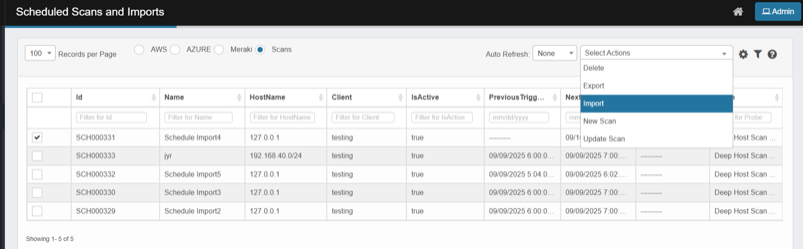
Click Select Actions → Import.
A modal like Import Schedule Scan opens with Click here to download the sample file, Browse, and Upload.
-
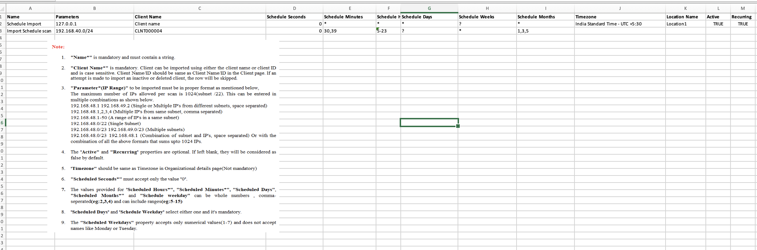
(Optional) Click the link to download the sample template that looks as below. Follow the instructions while populating the data
-
Prepare your file and keep the headers exactly as per the sample file, and fill values for:
-
Name is mandatory and must contain a string
-
Parameters (IP Range) to be imported must be in proper format. The maximum number of IP(s) allowed is 1024
-
Client Name is mandatory. Can specific either Client name or Client ID and is case sensitive
-
Timezone, Active (true/false)
-
Schedule fields (second/minute/hour/day/month/weekday)
-
Location
-
Active (true/false)
-
Recurring (true/false)
-
Probe: Probe name to be executed when the scan is triggered
-
recipients (for network scans)
-
-
Browse to file location
-
Select file
-
Upload. file
-
Close the dialog
-
verify new/updated jobs in the grid.
Important behaviors
-
If a row’s schedule is in the past, it’s skipped during import (silently).
-
Active = true: Record will appear in scheduled scan and Import job list and scan will be triggered at designated time
-
Active = false/blank: Record will appear in scheduled scan and Import job list but a scan shall not be triggerred
-
In time fields:
-
* is not allowed for minute (row skipped).
-
* in day/hour/month/weekday = “every …”.
-
Month/weekday must be numeric (no “Jan”/“Mon”).
-
-
If there are errors, you’ll get an error report to fix and re-upload.