Details Panel (Main Scan Summary)
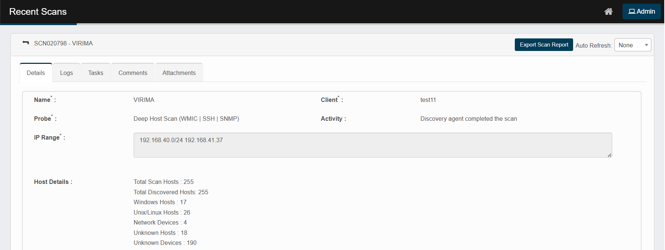
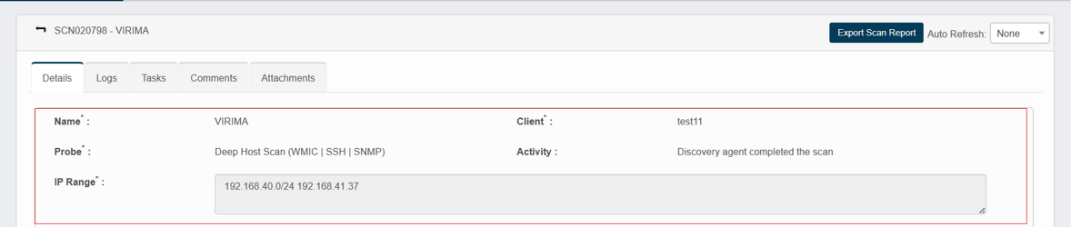
General Information:
-
Name: Scan name
-
Client: Discovery application used to execute the scan
-
Probe: Probe type used for the scan (Deep Host Scan (WMIC|SSH|SNMP))
-
Activity: Status update on completed actions (e.g., Discovery agent completed the scan)
|
Activity |
Status |
|
Finding host types |
Scan in progress |
|
Running probe <ProbeName> on host <Host> |
Scan in progress |
|
Found <N> Hosts up and running |
Scan in progress |
|
Discovery agent completed the scan |
Scan completed |
|
Scan aborted |
Scan aborted |
IP Range
-
The IP address or range targeted by the scan (e.g., 172.16.5.187)
Host Details:
-
Summary of discovered devices:
-
Total Scan Hosts (255): Number of targets included in this scan (from your IP range).
-
Total Discovered Hosts (255): Total number discovered hosts for a given IP range.
-
Windows Hosts (17): Successfully fingerprinted as Windows.
-
Unix/Linux Hosts (26): Successfully fingerprinted as Unix/Linux.
-
Network Devices (4): Routers/switches/firewalls, etc.
-
Unknown Hosts (18): The targets are reachable, but none of the supplied credentials authenticated, so the OS couldn’t be identified.
-
Unknown Devices (190): Devices discovered but not fully classified (often due to missing credentials/ports).
-
Execution Info
-
Run by: Name of the user who initiated the scan (e.g., Admin Virima). Logged in User
-
Status: Final scan result, such as "Scan completed" or "Scan in progress."
-
Scan Completed: The master scan is marked Completed only after every child scan finishes and no hosts or sub lists remain pending.
-
Scan in Progress: The master scan is marked In Progress, if the child scan has not completed or has not been assigned a status (Success, Partial, or Failed).
-
-
Triggered at / Completed at: Timestamps indicating when the scan started and finished.
-
Scan duration: How long the scan took (e.g., 1 minute 20 seconds).
Scan Results Table (Bottom Section)
This table shows detailed data per discovered device:

-
IP address: The address of the scanned system.
-
Host name: Identified system name (e.g., VTL00066).
-
Result: Status (e.g., Success).
-
Success
-
Failed
-
Partial
-
Pass/Fail
-
Recent scan “Result” and “Details” scenarios
|
Result |
Details (examples shown in UI) |
|
Success |
Scan completed |
|
Partial |
Couldn’t discover the complete details. Scan completed |
|
Failed |
Invalid Username/Password; |
|
Failed |
No working credential |
|
Failed |
Scan Has Timed out for <host> |
|
Failed |
Error Executing probe on <host> |
|
Failed |
Insufficient privileges for <host> |
|
Pass / Fail |
Pass/Fail with audit-specific message |
-
Device type: Type of device identified (e.g., Windows Host).
-
Device summary: Key system information,
-
e.g.:
-
Operating system
-
Domain/Workgroup
-
MAC address
-
-
Rescan: The circular icon on the right is to initiate a Rescan. Option to change the Probe and Discovery application (Client) shall be provided.
-
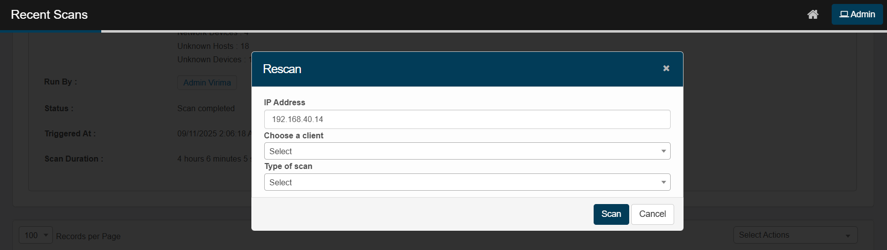
In Recent Scans, click the circular arrow at the far right of the row to open Rescan.
-
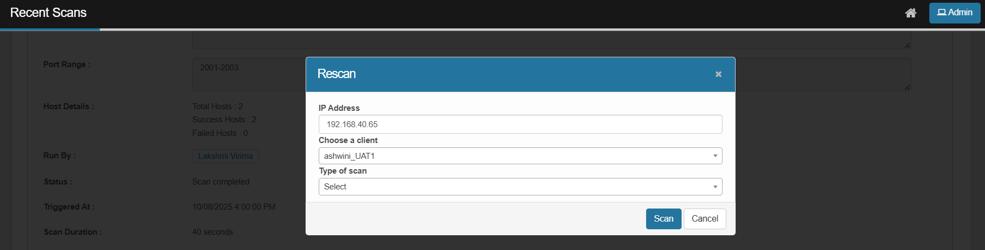
The dialog shows:
-
IP Address – prefilled with the selected host.
-
Choose a client – pick the Discovery application/tenant to run against.
-
Type of scan – choose the probe to use (e.g., Deep Host Scan).
-
-
Adjust Client and Type of scan (Probe) as needed, then click Scan to launch an immediate rescan.
-
A new run will appear on the Recent Scans page; refresh to see status updates.
-
-
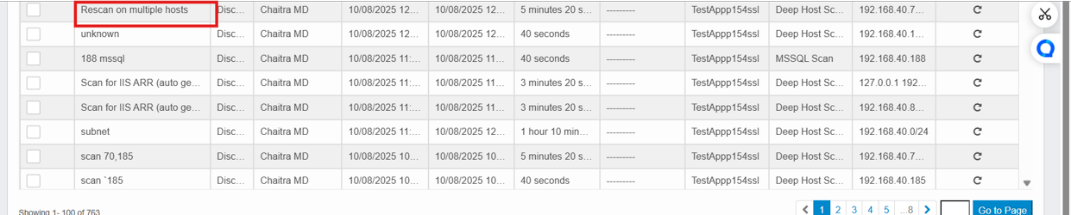
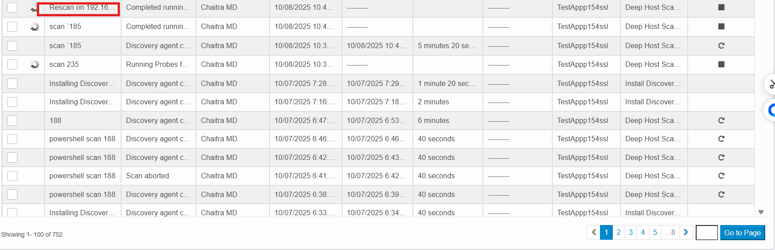
Rescans appear as the top entry in the recent scans table. The scan name will be Rescan on <IP-Address>
Example: Rescan on 192.168.1.188.
Available Actions (from Select Actions dropdown)
Users can perform follow-up actions on selected devices using the Select Actions dropdown:

Move to CMDB
-
Move to CMDB is allowed when the result is Success, the discovered item cannot move to CMDB otherwise.
-
When the result is Failed or Partial, the user can select Move to CMDB, but the record will not move. No error message displays.
Re-scan
-
Reinitiates scan on the selected record.

-
Select the scan probe and client to proceed, then click Scan to rescan.
-
When a single host is selected and a rescan is performed, the rescan will appear as the top entry in the recent scans table. The scan name will be Rescan on <IP Address>.
Example: Rescan on 192.168.1.188
-
When Multi-host is selected and a rescan is performed, the rescan will appear as the top entry in the recent scans table. The scan name will be Rescan on multiple hosts.