Accessing Recent Scan
-
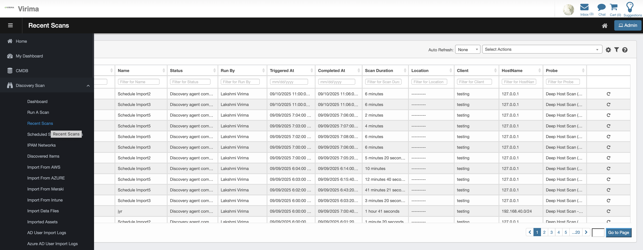
From the left navigation, go to Discovery Scan → Recent Scans.
-
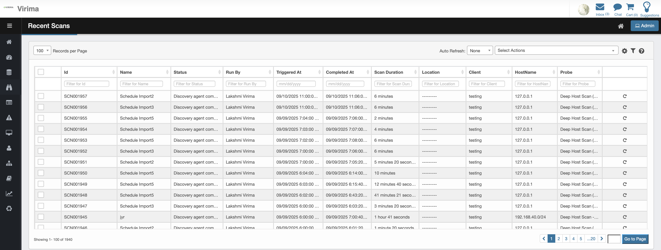
The page displays the most recent scan runs (newest first) with the columns: Id, Name, Status, Run By, Triggered, Completed, Scan Duration, Location, Client, HostName, and Probe.
Column Details
-
Scan ID: The unique identifier for a scan.
-
Scan name: A unique identifier for each scan, often descriptive based on location, scan type, or schedule.
-
Status: Indicates the outcome of each scan. Possible values include:
-
Discovery agent completed the scan (successful): The master scan is marked Completed only after every child scan finishes and no hosts or sub lists remain pending.
-
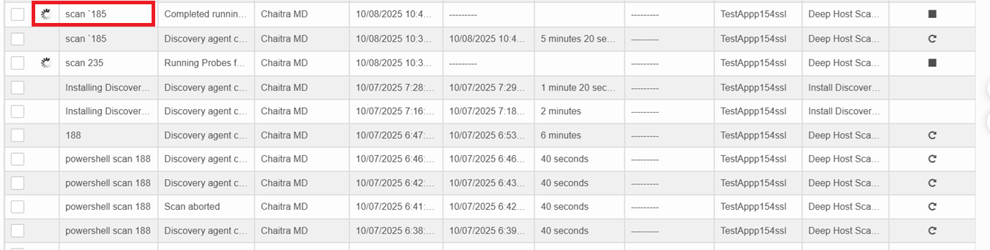
Scan aborted: The user manually stopped the scan.
-
Scan in Progress: The scan is in progress.
-
The master scan is marked In Progress, if the child scan has not completed or has not been assigned a status (Success, Partial, or Failed).
-
-
-
Triggered at: Indicates when the scan started.
-
Completed time: The timestamp when the scan finished or failed. This helps track duration and performance.
-
Duration: The total time taken for the scan to complete. This helps identify unusually short (failed) or long (delayed) scans.
-
Run by: Shows which user or system triggered the scan.
-
Rescan/Stop Scan: Allows users to manually reinitiate or repeat a scan for a specific entry. Each row corresponds to a discovery scan, providing a shortcut to run that scan again, regardless of previous success. This column also allows users to abort an ongoing scan and initiate a rescan.
-
Rescans appear as the top entry in the recent scans table with the same Name.
-