Imported Asset Details Page
When viewing an imported asset in Virima, the page displays structured information across multiple sections, allowing administrators to review, validate, and take further actions such as moving the asset to the CMDB or rescanning.
-
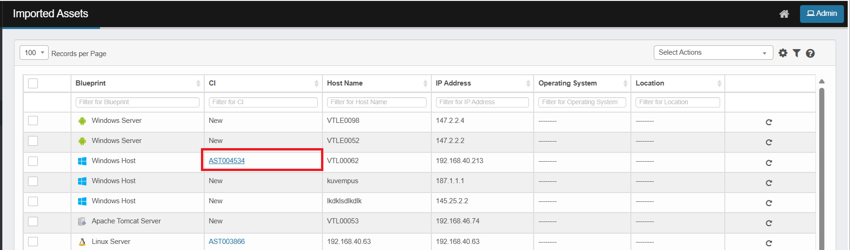
Clicking the hyperlinked CI ID under CI column will display the corresponding record in CMDB.
-
If we click on any other column values regardless of whether CI exists in CMDB or not, the user is redirected to Imported Assets view to view the imported asset data.
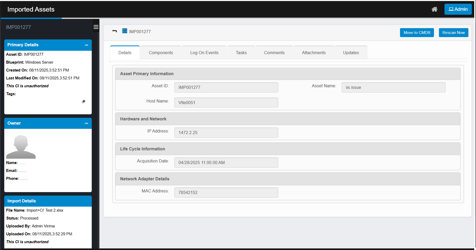
Header Section
-
Asset ID: Unique identifier assigned to the imported asset (e.g., IMP001277).
-
Move to CMDB Button: Pushes the asset record into the Configuration Management Database (CMDB).
-
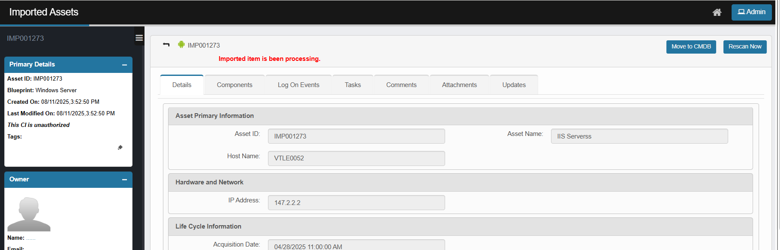
The record will appear greyed out while the imported asset is being moved to the CMDB. Once the move is complete, the asset will be removed from the Imported Assets list.
-
During this process, the system displays the progress message “import item is being processed” and automatically redirects the page to the imported asset’s details.
-
-
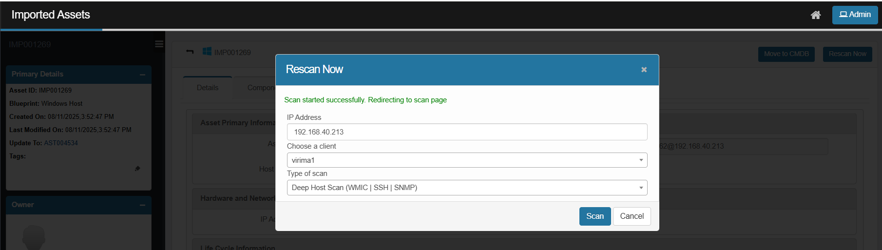
Rescan Now Button: Triggers an immediate re-scan of the asset to validate or update its details.
-
Select the Client and Type of scan from the dropdown menus and then Click Scan to initiate the rescan.
-
The system will display a success message and redirect you to the Recent Scan page.
-
Tabs Section
Multiple tabs are available to provide deeper insights into the asset:
-
Details (default view) – Displays primary information, hardware, lifecycle, and network adapter details.
-
Components – Shows associated components for the asset.
-
Log On Events – Captures and displays login activity related to the asset.
-
Tasks – Tracks assigned tasks or actions linked to this asset.
-
Comments – Allows administrators to add or view comments about the asset.
-
Attachments – Stores supporting files such as documents, screenshots, or reports.
-
Updates – Displays historical updates or changes to the asset record.
Main panel – Details tab sections
-
Asset Primary Information
-
Asset ID – the imported ID (IMP prefix).
-
Asset Name – Asset name from the file.
-
Host Name – The hostname of the asset.
-
-
Hardware and Network
-
IP Address – last/primary IP from the import (e.g., 1472.2.25).
-
-
Life Cycle Information
-
Acquisition Date – date/time of acquisition provided during import.
-
-
Network Adapter Details
-
MAC Address – network adapter MAC captured in the import.
-
Left-Side Panels
-
Primary Details
-
Asset ID: Unique system identifier (e.g., IMP001277).
-
Blueprint: Type of asset (e.g., Windows Server).
-
Created On: Timestamp when the asset was imported (e.g., 08/11/2025, 3:52:51 PM).
-
Last Modified On: Timestamp of the most recent update.
-
Authorization Status: Indicates whether the CI is authorized (in this case, unauthorized).
-
Tags: Optional labels for categorization (empty if not provided).
-
-
Owner
-
Name: Designated owner of the asset (blank if not assigned).
-
Email: Contact email of the owner.
-
Phone: Contact number of the owner.
-
-
Import Details
-
File Name: Source file used for import (e.g., Import+CI’ Test 2.xlsx).
-
Status: Processing state of the file (e.g., Processed).
-
Uploaded By: User who uploaded the file (e.g., Admin Virima).
-
Uploaded On: Timestamp of the file upload (e.g., 08/11/2025, 3:52:29 PM).
-
Authorization Status: Reflects whether the CI is authorized (unauthorized).
-