Move items to the CMDB
After importing Azure data, promote it to the CMDB.
-
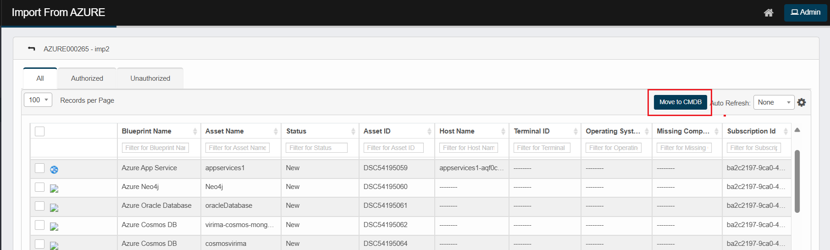
In All, Authorized or Unauthorized, select one or more rows.
-
Click Move to CMDB.
-
In the confirmation dialog, click Continue.
The move job runs in the background—no further action is required. Use Auto Refresh to watch status changes.
Tip: If no rows are selected, your environment will move all records that match the current filters. If you want to limit scope, always select the exact rows to move.
-
Upon successful move to CMDB, the records will be deleted from “Import from AZURE” and “Discovered Items” View.