Viewing a discovered Intune record
-
In Import from Intune, open the All tab. Click any row (e.g., an Asset Name).
-
The Discovered Item view for that asset opens.
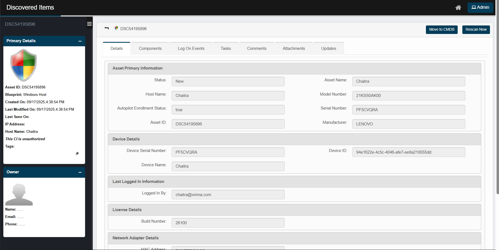
Discovered item view overview
Primary Details (left panel)
Quick facts about the CI:
-
Asset ID – Virima’s unique identifier for the discovered CI (e.g., DSC69303). Use this to search or reference the record.
-
Blueprint – The discovery blueprint that matched the resource (e.g., Intune Virtual Network, Intune Neo4j). It indicates the CI’s class/type.
-
Created On – Timestamp when the CI was first created in the CMDB from discovery.
-
Last Modified On – The most recent time the CI’s data was updated (any field change or enrichment).
-
Last Seen On – The last successful discovery of assets. If this gets old, the asset may be offline or unreachable.
-
The "Last Seen On" field is not available for assets imported from Cloud sources.
-
-
IP Address – Last known IP detected for the CI (blank for types that don’t expose an IP).
-
Host Name – Host/endpoint name captured by discovery (for cloud services, often the workload/task name).
-
Authorization status – A badge indicating Authorized or This CI is unauthorized:
-
Authorized = the CI is recognized/approved to exist in the CMDB; surfaced from Authorize tab of Import from Intune import records view.
-
An authorized asset always has an associated CMDB ID, such as "Update to <CMDB Asset ID>".
-
-
Unauthorized = the CI is new or not yet approved; typically surfaced from the Unauthorized tab in import views.
-
-
Tags – If any
Tags are Intune metadata key-value pairs attached to resources (like EC2 instances, S3 buckets, etc.).
Top-right actions
-
Move to CMDB – Promotes this discovered item into the CMDB.
-
Rescan Now – Runs a targeted re-discovery for this single asset.
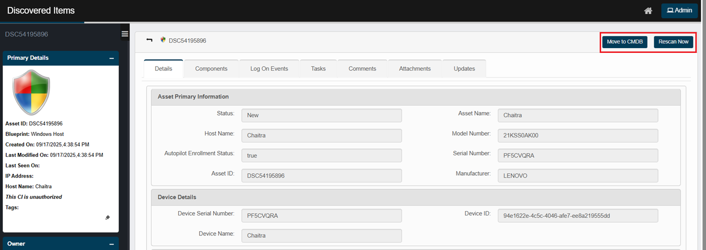
Tabs (main panel)
Details: A complete inventory of the Configuration Item (CI) is captured, with the specific details shown depending on the blueprint associated with the asset.