Accessing the Import From Intune window
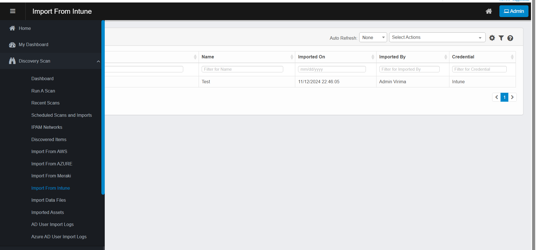
In the navigation pane, select Discovery Scan › Import From Intune.
-
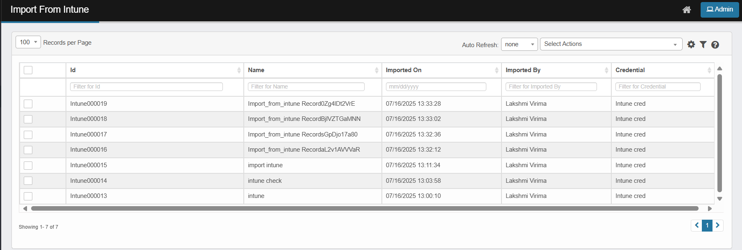
The Import From Intune window opens and displays list of imported records. Each row represents a single import run.
-
Key columns:
-
Id: Unique identification ID of the import run (e.g., Intune005553), records imported from Intune will have the prefix “Intune” followed by a six-digit sequential number.
-
Name: The user provided name used to identify the import run.
-
Imported On: The date and time when the import was completed.
-
Imported By: The logged-in user who initiated an import.
-
Credential: Virima credential profile used to connect to Intune.
-
Select Actions: Perform bulk operations on selected or filtered rows.
-
-
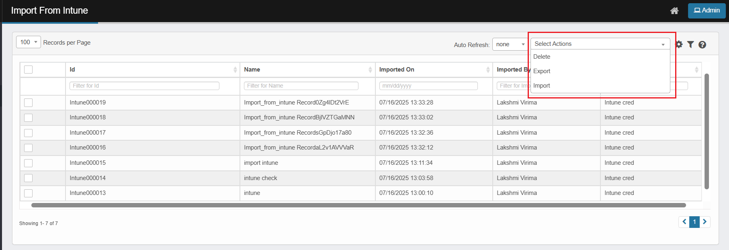
From the Select Actions drop-down list, choose the operation you want to perform.
-
Delete: Remove selected import record
-
Selected import record(s) will be deleted.
-
CI(s) imported during the selected import will be removed from Discovered Items.
-
CI(s) moved to CMDB will still appear under CMDB after deleting the Intune import record.
-
-
Export – Download grid contents (selected or filtered rows) to Excel.
-
If you have selected rows, only the selected rows are exported.
-
If you have applied filters, all rows that match the current filters are exported.
-
If no filters are applied and no rows are selected, exporting will include all records from all pages.
-
The file includes the grid columns (e.g., Unique ID, Name, Imported By, Imported On and Credential) (Refer Export Excel Column Detail)
-
This downloads the import records NOT the CI(s).
-
Import – Initiate a new Import from Intune.