Import Asset/CI Relations
After moving the CI into the CMDB, to import asset-to-CI relationships:
-
Select the file containing relationship data.
-
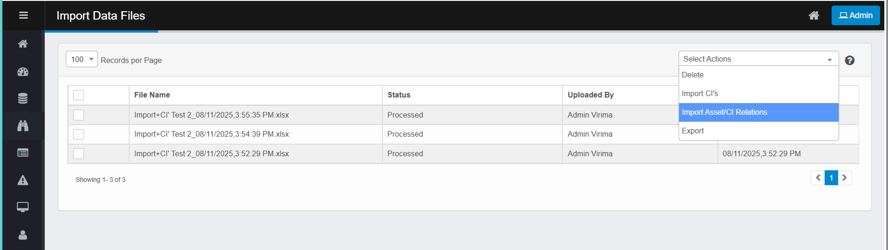
From the Select Actions menu, click Import Asset/CI Relations.
-
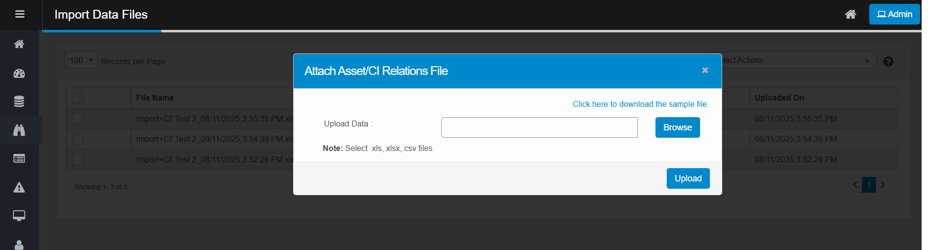
The Attach Asset/CI Relations Files window appears, allowing you to upload and map your asset-to-CI relationship data files.
-
In the Attach Asset/CI Relations File window:
-
Click Browse to select a supported file format (.xls, .xlsx, or .csv).
-
(Optional) Download the sample file for correct formatting.
-
Relationship Import — Columns & Rules
Creates links between two existing CIs in CMDB. Use it after the CIs are already in CMDB (or after you have moved imported CIs into CMDB).
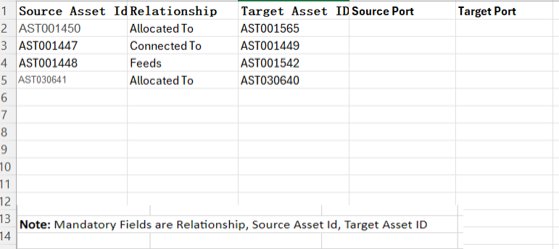
Supported formats: .xls, .xlsx, .csv
Mandatory columns (must be present & filled):
-
Source Asset Id
The CMDB ID of the “from” CI (e.g., AST001450). Must be an existing CI ID. -
Relationship
The relationship type name (e.g., Allocated To, Connected To, Feeds).
➤ Must exactly match a configured relationship name in Admin → SACM→ Relationship Types (spelling/case must match; no free-text). -
Target Asset ID
The CMDB ID of the “to” CI (e.g., AST001565). Must be an existing CI ID.
Optional columns (populate when relevant):
-
Source Port
Port (or interface) on the source CI (e.g., Ethernet1/1, 8080). Free text. -
Target Port
Port (or interface) on the target CI (e.g., Gi0/2, 443). Free text.
-
Click Upload.
-
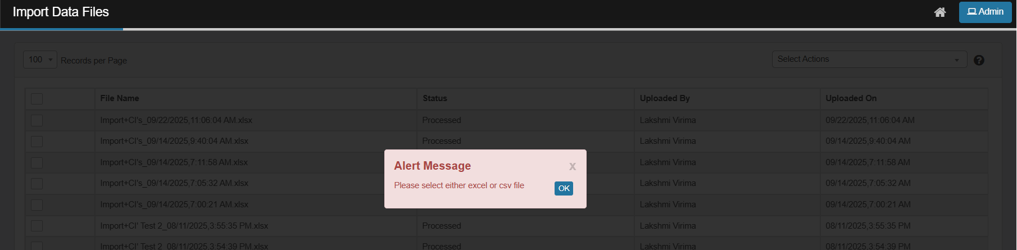
If a user attempts to upload a file in an unsupported format such as .txt on the Import Data Files page, the system immediately rejects the file and displays an error message.
-
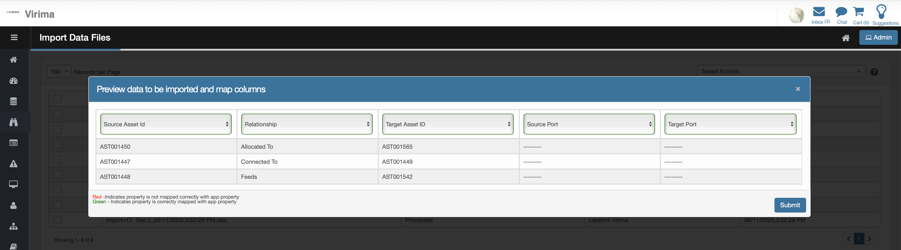
The system processes the file and displays the imported relationship mappings for review.
-
Click Submit.
-
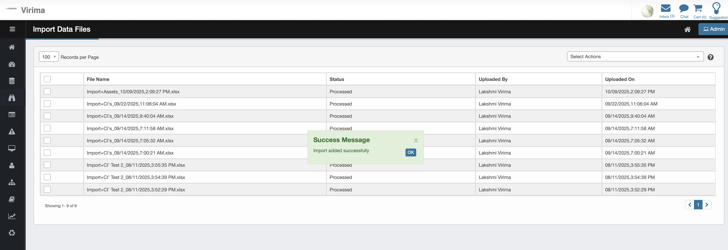
Confirmation message pop-up will be displayed "Success Message - Import added successfully"
-
The user can view the relationship under CMDB CI details page.