Export
To export uploaded file records,
-
Select the file(s) to export.
-
From the Select Actions menu, click Export.
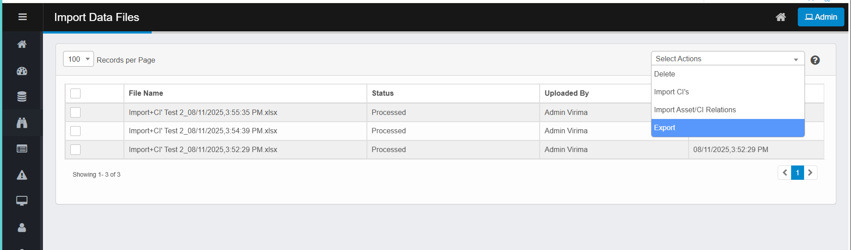
-
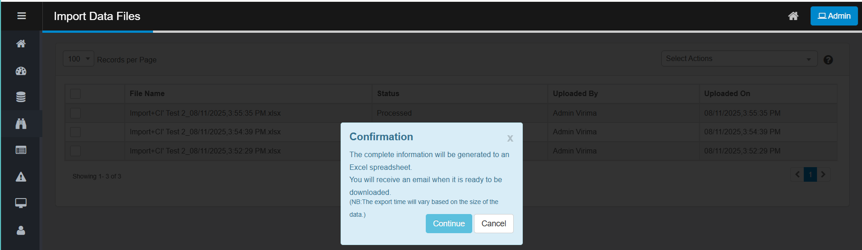
A confirmation dialog appears, indicating that the selected records will be exported to an Excel file.
-
Click Continue.
-
An email is sent to the requesting user’s email address (the one currently signed in).
-
Download Link: The email contains a download link to a ZIP file with the exported data.
-
The exported ZIP file follows this naming format:
ImportDataFiles<hh.mm.AM/PM>-<MM.DD.YYYY>.zip
(For example: ImportDataFiles10.15.AM-10.08.2025.zip) -
Columns Included in the Export:
The exported file contains the following columns:-
File Name: The name of the uploaded file (e.g., Import+CI's.xlsx)
-
Status: The processing state of that upload (Processed, Processing)
-
Uploaded By: The display name of the user who uploaded the file
-
Uploaded On: The local timestamp when the file was uploaded (e.g., 10/08/2025, 10:15:47 AM)
-
-