View and Edit a Network
Details Tab
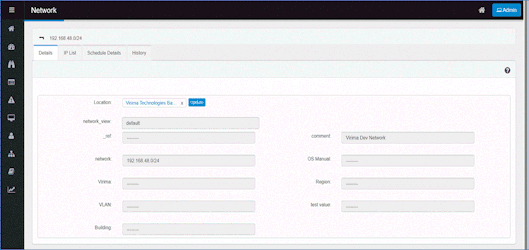
Navigate to the IPAM window and select any network record to view, such as the network 192.168.48.0/24.
-
The Details Tab provides default and static information about the selected network, which is generally not editable. The fields displayed include:
-
Location: The physical or logical location of the network (e.g., Virima Technologies Bangalore).
-
Network View: The view type for the network (e.g., default).
-
_ref: The reference identifier for the network record (typically blank or system-generated).
-
Comment: A description for the network (e.g., Virima Dev Network).
-
Network: The IP address range for the network (e.g., 192.168.48.0/24).
-
OS Manual: Operating system details (if applicable).
-
Virima: A field for Virima-specific information.
-
Region: Geographic region of the network.
-
VLAN: VLAN information, if relevant.
-
Test Value: An extra customizable field.
-
Building: The physical location tied to the network.
-
This tab displays only static data and doesn't allow editing.
IP List Tab
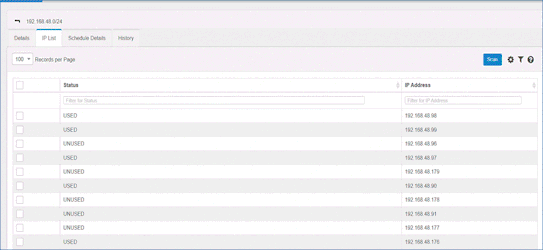
The IP List tab shows all IP addresses associated with the network, allowing you to view the status of each IP address.
-
Example:
-
100 Records per Page: Number of records displayed per page.
-
Status: The status of each IP (e.g., USED, UNUSED).
-
IP Address: The actual IP address associated with the network.
-
Filter for Status: Filter IP addresses based on their status (e.g., USED or UNUSED).
-
Filter for IP Address: Filter by specific IP addresses.
-
Schedule Details Tab
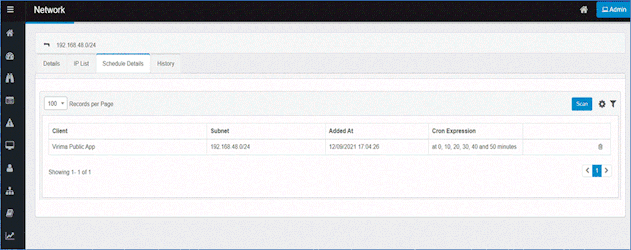
The Schedule Details tab shows scheduled tasks for the network, such as automatic syncs or scans.
-
Example:
-
100 Records per Page: Number of scheduled records displayed per page.
-
Client: The client associated with the schedule (e.g., Virima Public App).
-
Subnet: The subnet associated with the schedule (e.g., 192.168.48.0/24).
-
Added At: The date and time when the schedule was added (e.g., 12/09/2021 17:04:26).
-
Cron Expression: The scheduling pattern (e.g., at 0, 10, 20, 30, 40 and 50 minutes).
-
History Tab
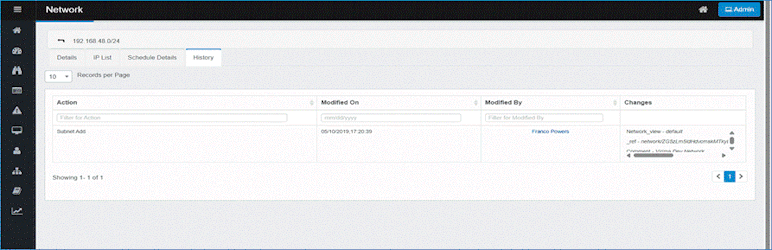
The History Tab provides a record of all changes made to the network, including actions such as adding or modifying configurations.
-
Example:
-
10 Records per Page: Number of history records displayed per page.
-
Action: The action performed (e.g., Subnet Add).
-
Modified On: The date and time when the action was performed (e.g., 05/10/2019, 17:20:39).
-
Modified By: The user who made the change (e.g., Franco Powers).
-
Changes: The specific changes made in the action.
-