Infoblox Configuration
Navigate to Admin > Integration > Infoblox Configuration
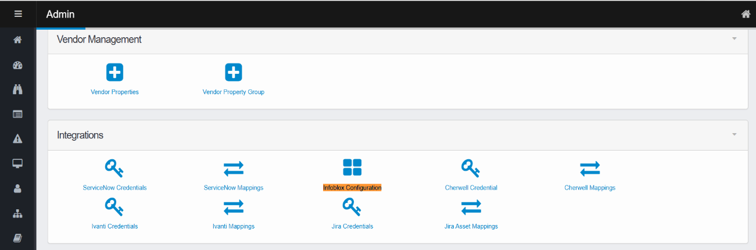
You have two options for adding Infoblox credentials. Please choose one of the following methods:
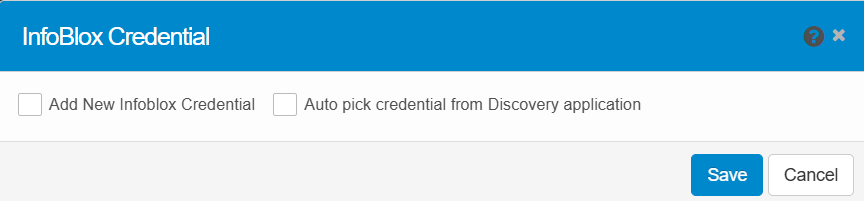
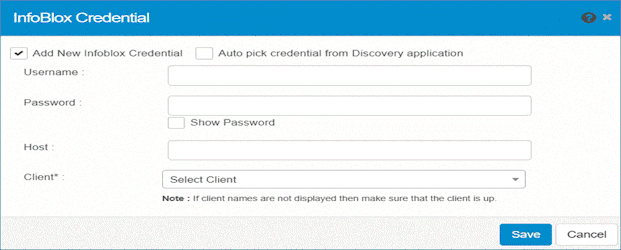
Option 1: Add New Infoblox Credential
Manually add a new Infoblox credential for authenticating the connection between the system and Infoblox. Enter the Infoblox username, password, host IP, and select the applicable client.
-
In the Admin section, navigate to Integration > Infoblox Configuration.
-
In the Infoblox Credential dialog box, click Add New Infoblox Credential.
-
Enter the following details:
-
Username: Your Infoblox username.
-
Password: Your password.
-
Host: The IP address of the Infoblox machine.
-
Client: Select the client from the drop-down list.
-
-
Click Save to complete the setup.
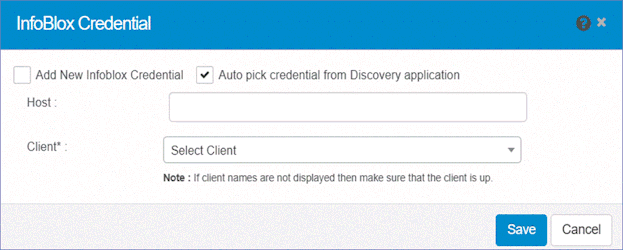
Option 2: Auto Pick Credential from Discovery Application
Automatically pick credentials from the Discovery application, streamlining the process. The system will fill in the required details, including host IP and client information.
-
In the Admin section, navigate to Integration > Infoblox Configuration.
-
In the Infoblox Credential dialog box, select Auto pick credential from Discovery application.
-
Enter the following details:
-
Host: The IP address of the Infoblox machine.
-
Client: Select the client from the drop-down list.
-
-
Click Save.