Navigation Tabs
Tabs at the top allow switching between:
-
Components
-
Log On Events
-
Tasks
-
Comments
-
Attachments
-
Updates
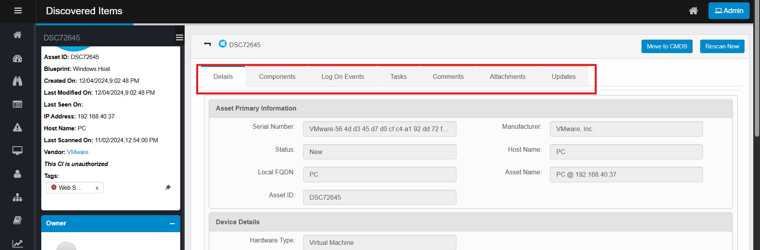
Components Tab
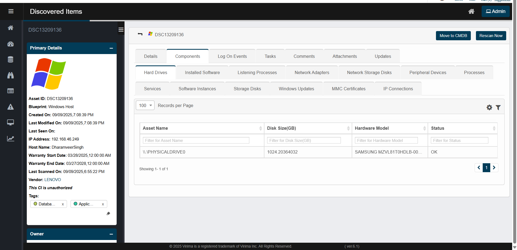
The Components tab offers a detailed view of the individual elements that comprise a discovered asset. It breaks down the asset into its technical components, providing insight into the system’s hardware and software configuration. This detail is crucial for effective IT asset management, troubleshooting, and audit readiness.
Sub-Tabs Under Components
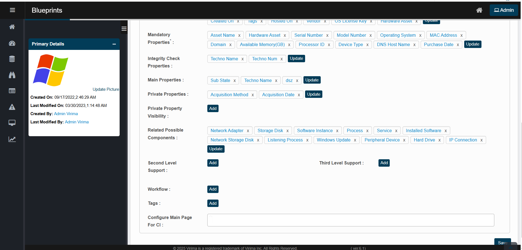
This section features multiple sub-tabs, each representing a specific type of system component. The components sub-tabs differ based on the “Related Possible Components” associated with the blueprint of the discovered items.
-
Hard Drives
-
Installed Software
-
Listening Processes
-
Network Adapters
-
Network Storage Disks
-
Peripheral Devices
-
Processes
-
Services
-
Software Instances
-
Storage Disk
-
Windows Updates
-
MMC Certificates
Use this section to:
-
Audit physical/virtual components
-
Identify mismatches, missing parts, or outdated hardware/software
Log On Events Tab
The Log On Events tab is part of the detailed view of a discovered asset, tracking user login activity on the selected machine. This tab reveals who accessed the system, when, and by what method or protocol. It is useful for auditing user behavior and detecting unauthorized access attempts.
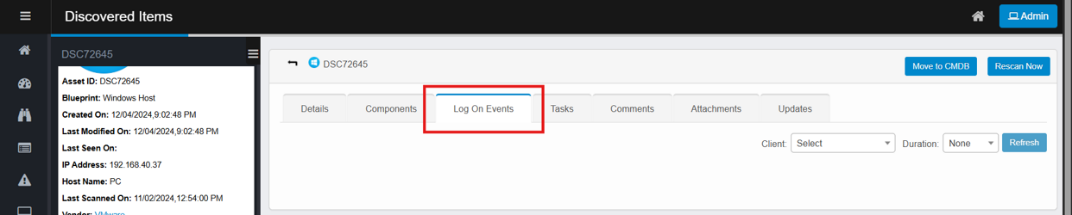
Tracks user login activity:
-
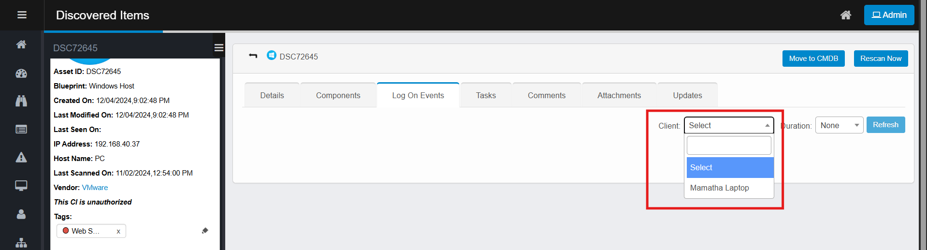
Client Dropdown: Select type of client used for logon session.
-
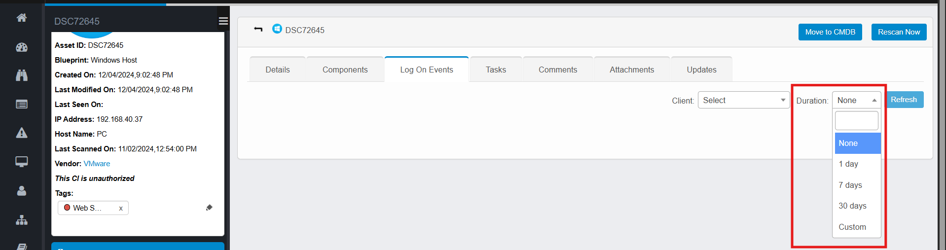
Duration Dropdown: Filter by time range (e.g., Last 24 Hours, Last 7 Days, Last 30 Days).
Tasks Tab
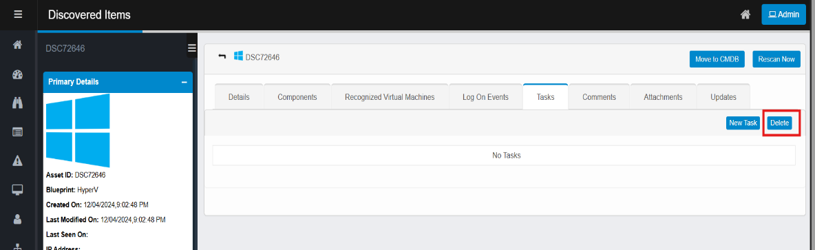
The Tasks tab in the Discovered Item's detail view tracks and manages task assignments related to the specific asset. This feature enables IT teams to collaborate by assigning, documenting, and monitoring tasks linked to a particular configuration item (CI).
-
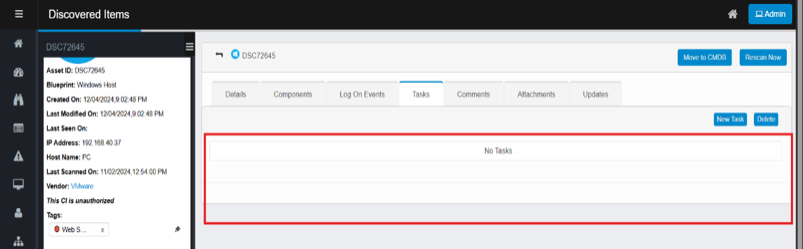
Task list area: The central area displays existing tasks related to the discovered item.
-
Select New Task to create a task for the asset.
-
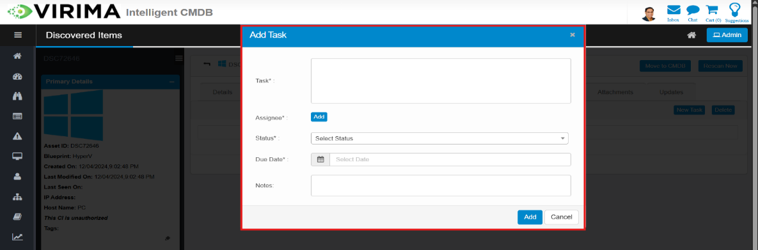
In the task form, enter the required details:
-
Task title
-
Assignee
-
Status
-
Due date
-
-
Click on Add to add the task to the list.
-
Select the task you want to remove.
-
Select Delete.
-
Confirm the deletion.
-
The task is permanently removed from the list.
-
Comments Tab
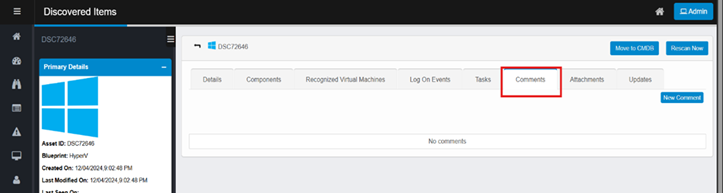
The Comments tab enables users to add and view notes or annotations for specific discovered items. It acts as a collaboration tool for teams managing IT assets, allowing them to document findings, track decisions, and leave messages for other administrators.
If no comments exist, the section displays No comments.
After comments are added, they appear in this section in chronological order.
-
Select New Comment to open a text box.
-
Use this to log issues, remarks, or observations about the CI.
-
-
In the Text Box, type your comment.
-
(Optional) Select Attach to include a file, such as a screenshot, log, or document.
-
Select Add to save the comment.
-
The comment appears under the CI and is visible to all users with access to the record.
-
-
To exit without saving, select Cancel.
Attachments Tab
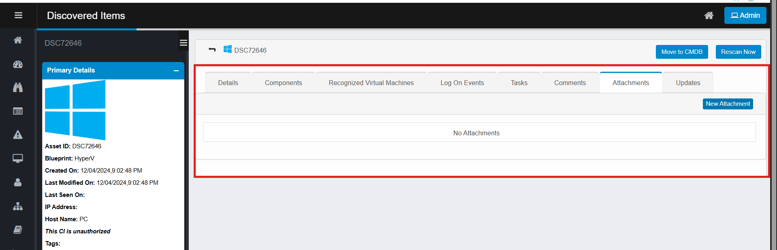
The Attachments tab allows users to upload and manage files linked to a discovered configuration item (CI). It serves as a centralized location for storing supporting documentation, screenshots, reports, logs, and other relevant files.
-
If no files are attached, the tab displays “No Attachments.”
-
After a file is uploaded, it appears in the list with options to view, download, or delete.
-
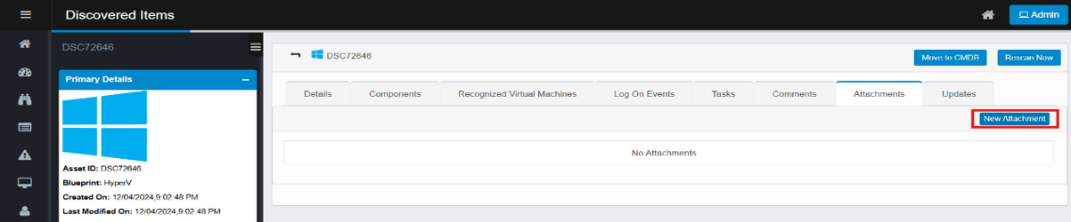
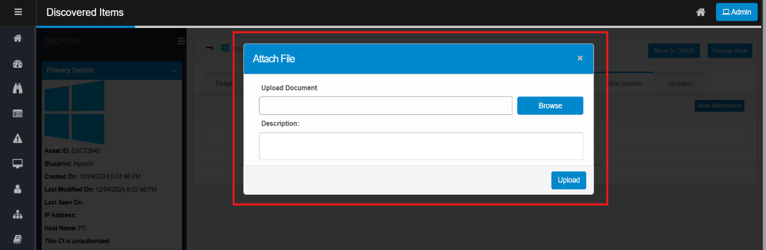
Select New Attachment.
-
A file upload popup opens.
-
-
In the popup window, do the following:
-
Upload Document – Select Browse to choose a file from your computer.
-
Description – (Optional) Enter a note or context for the file.
-
-
Click on Upload to save the file and associate it with the discovered item.
Updates Tab
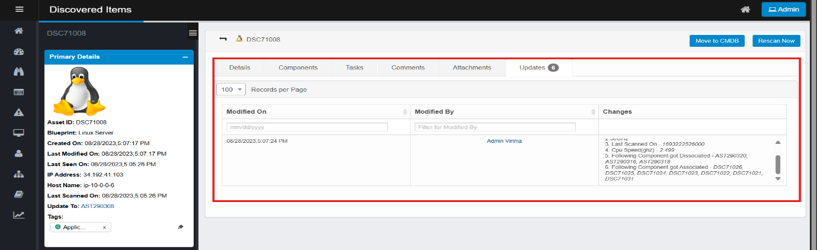
The Updates tab offers a chronological log of changes to a discovered Configuration Item (CI), serving as a critical tool for tracking modifications, updates, and administrative actions over time.
-
Modified On
Displays the date and time of each change. -
Modified By
Shows the username or system account that made the change. -
Changes
Lists the types of modifications made, including:-
Configuration adjustments
-
Hardware or software updates
-
Scanning events
-
Component associations or dissociations.
-