Filter By
Click the drop-down list and select one of the following: Show All, New, or Update. The record list is updated and displays the records that were scanned, discovered, or imported but are not present inside the CMDB.
-
Default: Show All
-
Available options:
- Show All: Displays both New and previously discovered items
New: Items not present in the CMDB.
Update: Items already in CMDB with new changes.
Apply and Save a Filter
- Under the column header, click in the Filter field.
- Type your search text and press Enter. The list refreshes to show matching records.
- Click Save Filter.
- In the dialog, enter a name for the filter and click Save.

You can repeat these steps to create multiple saved filters.
Apply or Delete a Saved Filter
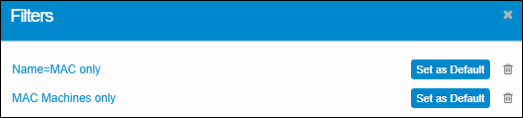
- Click the Saved Filter icon on the toolbar to open the Filters list.
- Select a filter to apply it to your data.
- (Optional) Click Set as Default to make it load automatically.
- To remove a saved filter, click its Delete icon.