Exporting Records Without Selecting Any Record
-
Open the Export Wizard
-
Click on Select Actions and select Export from the dropdown menu.
-
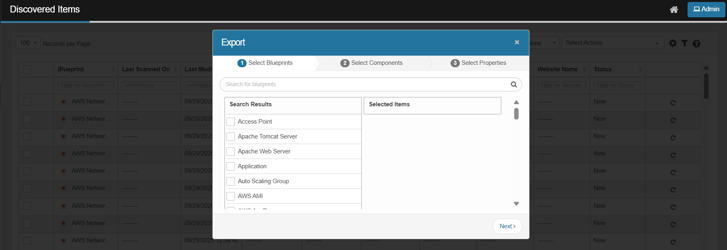
The system will display the Export wizard.
-
-
Select Blueprints
-
In the Blueprints step, use the search bar to find and tick the blueprint(s) you want to export (e.g., AWS, Windows, etc.).
-
Click Next to proceed.
-
-
Select Components
-
If the selected blueprints have component types, choose the components you need.
-
Click Next to continue.

-
-
Select Properties
-
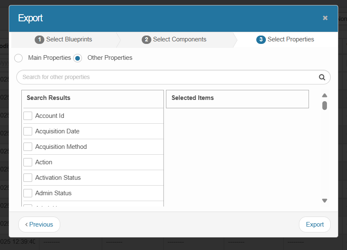
Start with Main Properties.
-
If you see the message: “No main properties are found for selected blueprints,” switch to Other Properties.
-
In Other Properties, search for and check the fields you want to include (move them to Selected Items if required by your UI).
-
Click Next or proceed as per the UI.
-
-
Export the Data
-
Click Export.
-
A dialog will appear with the message:
“The complete CMDB information will be generated to an Excel spreadsheet. You will receive an email when it is ready to be downloaded.” -
Click Continue to confirm.
-
-
Download the Exported File
-
Wait for the email or notification.
-
Follow the link provided in the email/notification to download the Excel file.
-