Import Users
While importing users into Virima, the system checks if the user already exists. If not, Virima creates a new user.
For consecutive AD imports, the value of a user gets updated if the value has been modified in the AD.
After configuring AD, follow these steps:
-
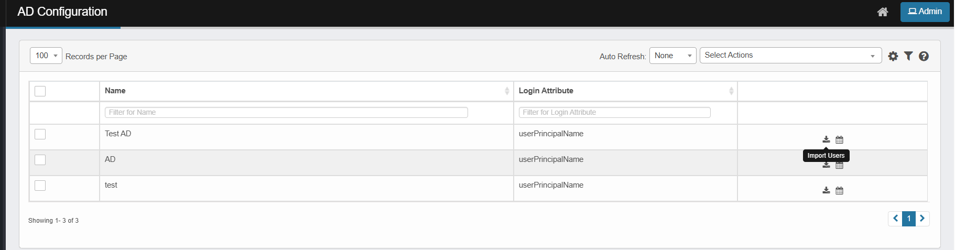
Click the Import icon located to the right of the selected entry.
-
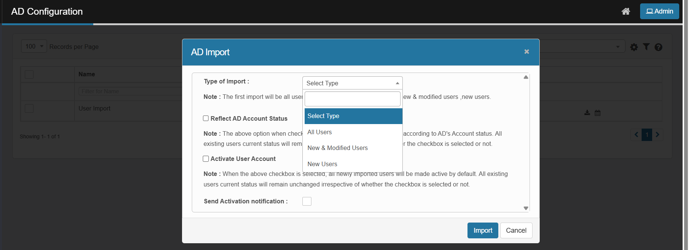
The AD Import dialog box displays.
-
From the Type of Import drop-down list, select an option.
-
Select the other options, as necessary.
-
Reflect AD Account Status – Enable to match user login status with Azure AD.
-
Activate User Account – Enable to make imported users active by default.
-
Send Activation Notification – Enable to email users upon account activation.
-
-
When all selections/entries are made, click Import.
-
A confirmation message displays. Click OK.