Export
The Export feature in CMDB allows users to download CI data in an Excel spreadsheet format. This is helpful for reporting, analysis, audits, or integration with external systems.
-
Click the Select Actions dropdown at the top-right of the CMDB list.
-
Choose Export from the dropdown.
There are two types of exports available:
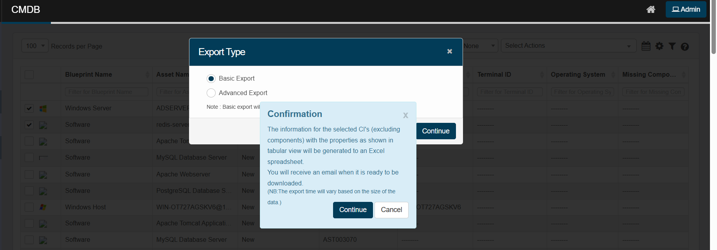
Basic export
-
Quick, straightforward export.
-
Includes only selected CI records.
-
Exports core CI properties as displayed in the CMDB list view.
-
After initiation, a confirmation window appears. The system emails the user when the export file is ready.
Export time may vary depending on the number of CIs selected and data size.
Advanced export
-
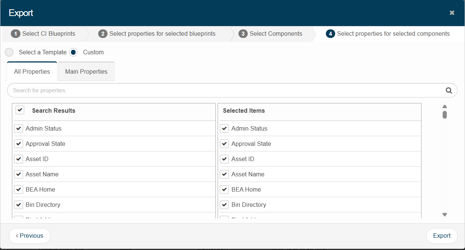
A customizable, multi-step export process.
-
Allows users to:
-
Select CI Blueprints – Choose which blueprint types (e.g., Windows Server, Software) to include.
-
Select Properties – Choose specific fields (such as Asset Name, Status, and Serial Number) for export.
-
Select Components – Include linked components, such as software instances and network adapters.
-
Select Component Properties – Define which component properties should be included in the export.
-
Users can use all properties or filter by main properties to focus only on critical data fields.
Ideal for creating detailed reports, audit packs, or custom views tailored to specific stakeholders.