Blueprints: SLA
Every Blueprint has its own SLA-defined based on its business factors. When a Root Cause CI is associated with an ITSM record, then the SLA of the blueprint is taken into consideration, provided a Custom Timescale and CI SLA are not defined.
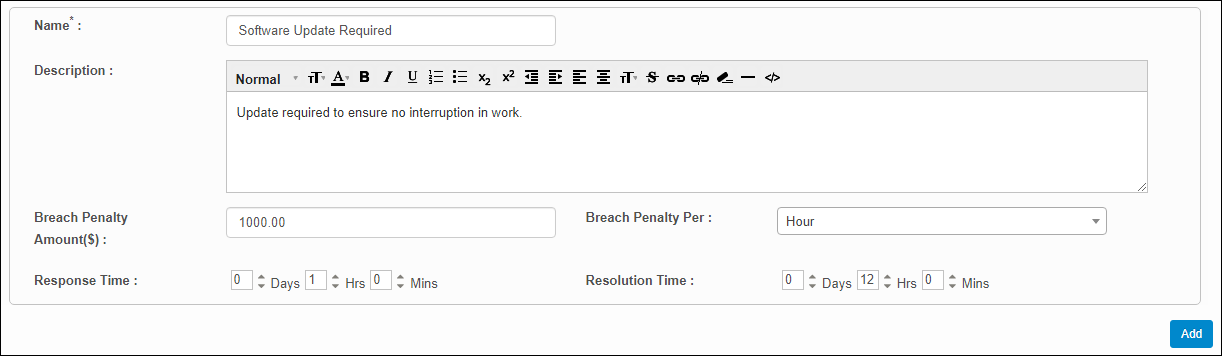
Use this function to configure response and resolution times for a CI marked as Incident, Requests, Changes or Problems that require resolution.
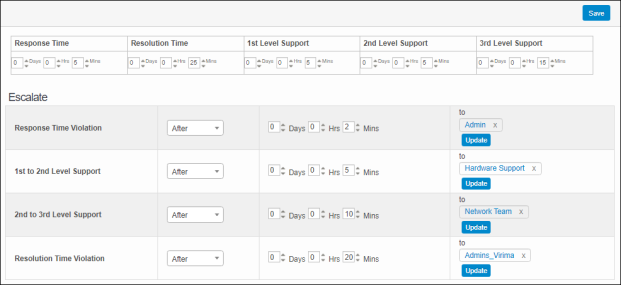
Use this function to manage the actions that occur for an SLA.
|
1.
|
In the main window, select Admin > SACM > Blueprints. The Blueprints window displays. |
|
2.
|
Select the record to manage. A new window displays. |
|
3.
|
In the Response Time field, specify the maximum amount of time that can pass before a response must occur. |
|
4.
|
In the Resolution Time field, specify the total time allowed to find a resolution. The Resolution Time cannot be smaller than the total of all the other response times (e.g., Response Time, 1st Level Support, etc.). |
|
5.
|
In the Support Level fields, specify the amount of time allows for each support level to respond. |
|
6.
|
In the Escalate section, do the following: |
|
a.
|
For the fields in the first column, specify when an action should taken place, either Before or After the specified time duration has occurred. |
|
b.
|
For the fields in the second column, select the amount of time that can elapse before a notification is sent to the users, roles, groups and departments specified. Multiple options can be selected. |
|
c.
|
For the actions in the third column, click Add (new) or Update (existing) to indicate who receives a notification that activity has been escalated. Refer to Searching for details on how to make selections in the tabs. |
|
7.
|
When all selections/entries are made, click Save. |
Related Topics
Other Functions and Page Elements