SLA: Tasks
| 1. | In the main window, select Admin > Other > Service Level Agreements. |
| 2. | Select the record to manage. |
| 3. | Follow the instructions below for the applicable action. |

 Adding a Task
| 1. | Click the Tasks tab. The Add Task dialog box displays. |
| 2. | In the Task field, enter the task details. |
| 3. | To assign a user |
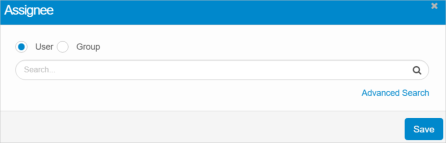
| a. | In the Search field, type the name of the user |
| b. | Press Enter. A list displays containing the names of all users |
| c. | Select the applicable user or group and click Save |
| 4. | In the Status field, click the drop-down list and select New, In Progress, or Closed. |
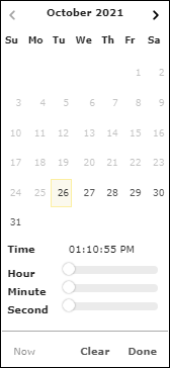
| 5. | In the Due Date field, click to display the date/time selector. |
| 6. | Do one of the following: |
| - | Click Now to populate the field with the current date/time. |
| - | Click Clear to clear the selection. |
| - | Click Done to save the selection and exit the window. |
| 7. | Do one of the following: |
| - | Click Today to accept the date/time displayed. |
| - | Select the applicable date and time by hovering over the hour/minute/AM or PM columns and scrolling until the desired element is shown. |
| - | Click Clear to clear the selection. |
| 8. | Once the selections are made, click outside the date/time selector area. |
| 9. | In the Notes field, enter any applicable notes for this task. |
| 10. | When all selections/entries are made, click Add. An email notification is sent to the user that a new task as been assigned. |
Editing a Task
| 1. | Click the Tasks tab. The Update Task dialog box displays. |
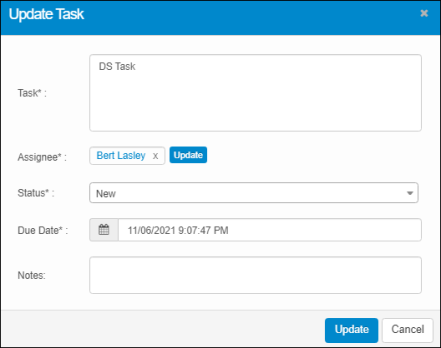
| 2. | Make the applicable changes. |
| 3. | Click Update. |
Deleting a Task
| 1. | Click the Tasks tab. |
| 2. | Click the Delete button. |
| 3. | In the Confirmation window, Type Delete and click Delete to confirm the deletion. |