Holidays
Use this function to specify holidays, which are used to auto-calculate resolution dates as they relate to incidents, changes, and problems.
|
1.
|
In the main window, click Admin > Organizational Details > Holiday. The Holiday window displays. |
|
2.
|
To scroll forward and backward between years, click the left and right arrows next to the date. |
|
3.
|
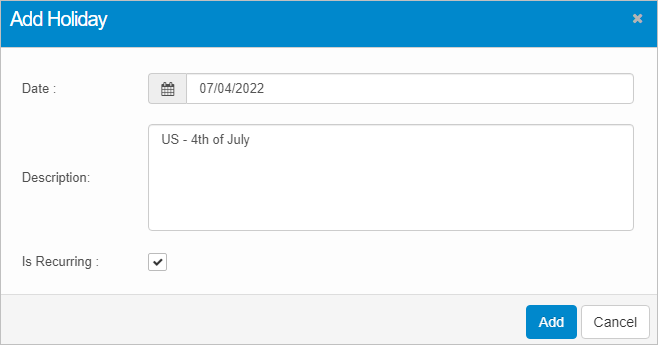
From the Select Actions drop-down list, choose New Holiday. The Add Holiday dialog box displays. |
|
1.
|
In the main window, click the gear icon and select Organizational Details > Holidays. |
The Holidays window displays and contains a list of all defined holidays.
|
2.
|
To scroll forward and backward between years, click the left and right arrows next to the date. |

 Add Holiday
|
1.
|
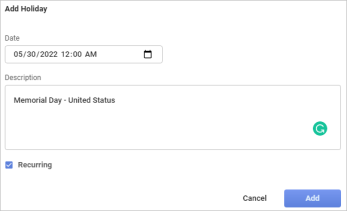
Click New Holiday. The Add Holiday dialog box displays. |
|
2.
|
In the Date field, use the calendar icon to select a holiday. |
|
3.
|
In the Description field, type a description. |
|
4.
|
If the holiday occurs on the same date each year, check Is Recurring. |
Edit Holiday
To edit the holiday details:
|
1.
|
Select a holiday in the list. |
|
2.
|
In the Update Holiday dialog box, make the necessary changes. |
Delete Holiday
To delete an existing holiday:
|
1.
|
Select a holiday in the list. |
|
2.
|
From the Select Actions drop-down list, choose Delete. If a confirmation message is displayed, type Delete and then click Delete. |
Other Functions and Page Elements