Cost Center
Use this function to define the cost centers.
In the main window, click Admin > Organizational Details > Cost Center. The Cost Center window displays.

 New Cost Center
|
1.
|
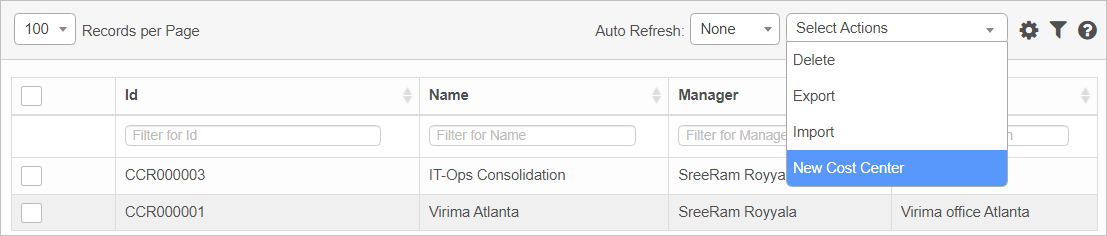
From the Select Actions drop-down list, choose New Cost Center. |
|
2.
|
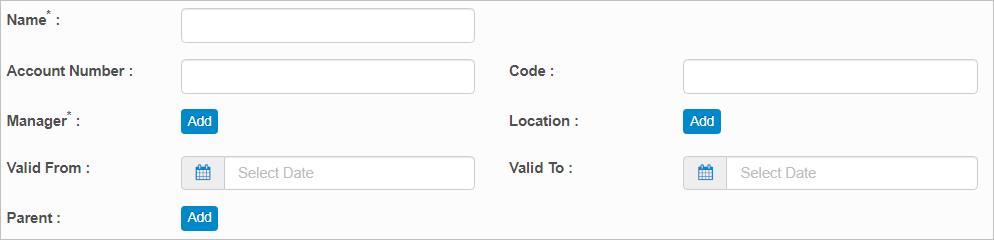
Enter the Name, Account Number, and Code for the cost center. |
|
3.
|
To associate a Manager, Location or Parent, click Add then search for and select the application item. |
|
4.
|
Specify the Valid From and Valid To dates for this cost center to be active. |
|
5.
|
When all selections/entries are made, click Add. |
Edit Cost Center
| |
Not all functions include an option to edit record line items shown in the main window. |
|
1.
|
Navigate to the window containing the record to edit. |
|
2.
|
Click the line containing the record. The applicable window or dialog box displays. |
|
3.
|
Make the necessary modifications. |
|
4.
|
Click Save or Add, as applicable. |
When editing an existing item, other options may be available, such as adding , , and and viewing .
| |
The options change based upon the function; therefore, not every option may be shown. |
Delete Cost Center
| |
Deleting is a permanent action and cannot be undone. Deleting may affect other functionality and information in the application such as data in configured reports, fields in windows, selectable options, etc. Therefore, be sure to understand the potential effects before making a deletion. |
|
1.
|
Click the line that contains the item to delete. |
|
2.
|
From the Select Actions drop-down list, choose Delete. If a confirmation message is displayed, type Delete and then click Delete. |
Export Cost Center
Exports data for the selected record as an Excel spreadsheet and sends an email notification when the spreadsheet is ready for download.
|
1.
|
Click the line that contains the item to Export. |
|
2.
|
From the Select Actions drop-down list, choose Export. If a confirmation message is displayed, take the appropriate action (for example, click OK or Continue). |

|
Exports data for the selected record as an Excel spreadsheet and sends an email notification when the spreadsheet is ready for download.
|
Import Cost Center
|
|
1.
|
From the Select Actions drop-down list, choose Import. |
|
2.
|
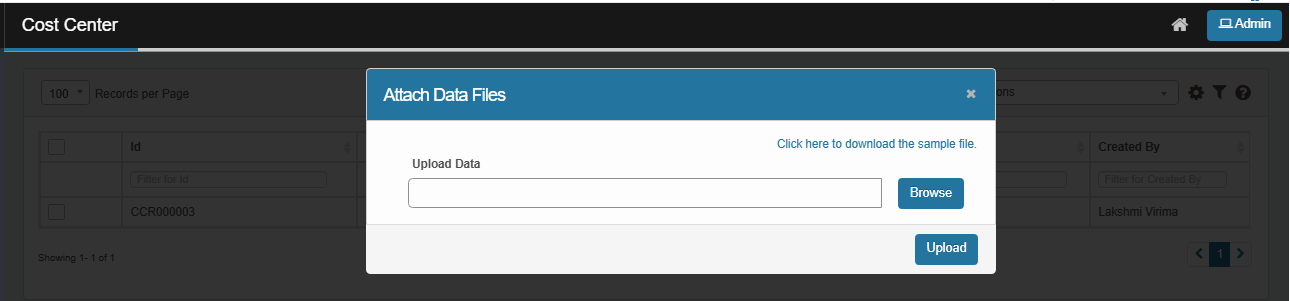
The Attach Data Files dialog appears. Click Browse to upload the prepare file. |
|
3.
|
A sample template file can be download from the dialog. Click Upload to complete the import.
|
Other Functions and Page Elements