Ivanti Mappings
Use this function to map properties between a Virima Blueprint and an Ivanti CI Type.
In the main window, select Admin > Integrations > Ivanti Mappings.

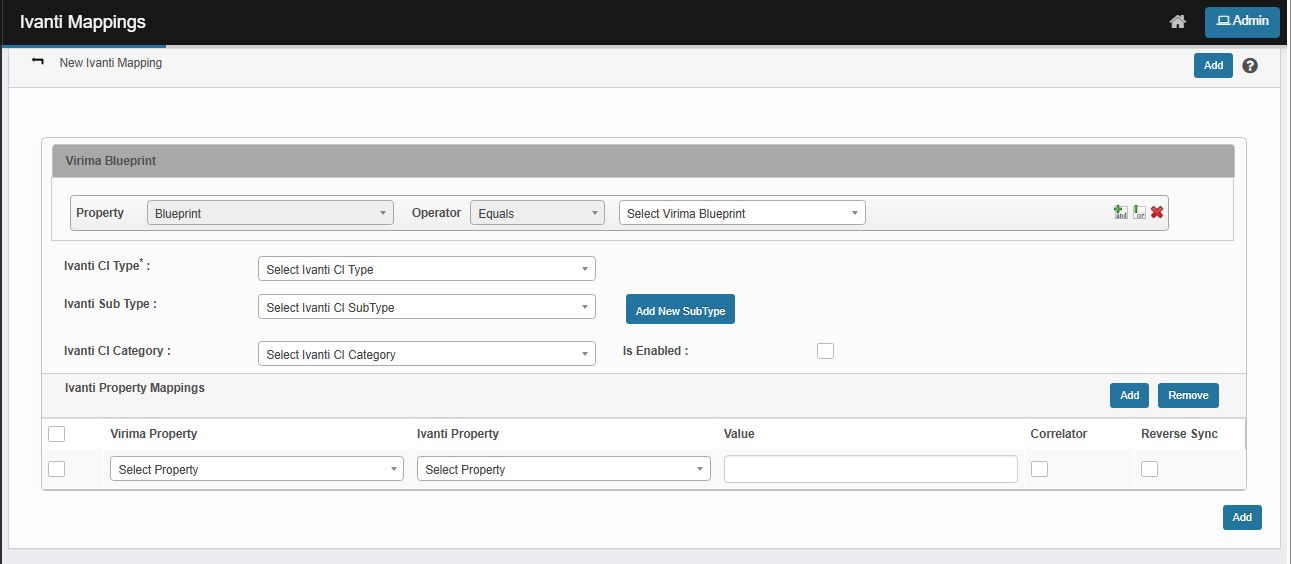
 New Mapping
|
1.
|
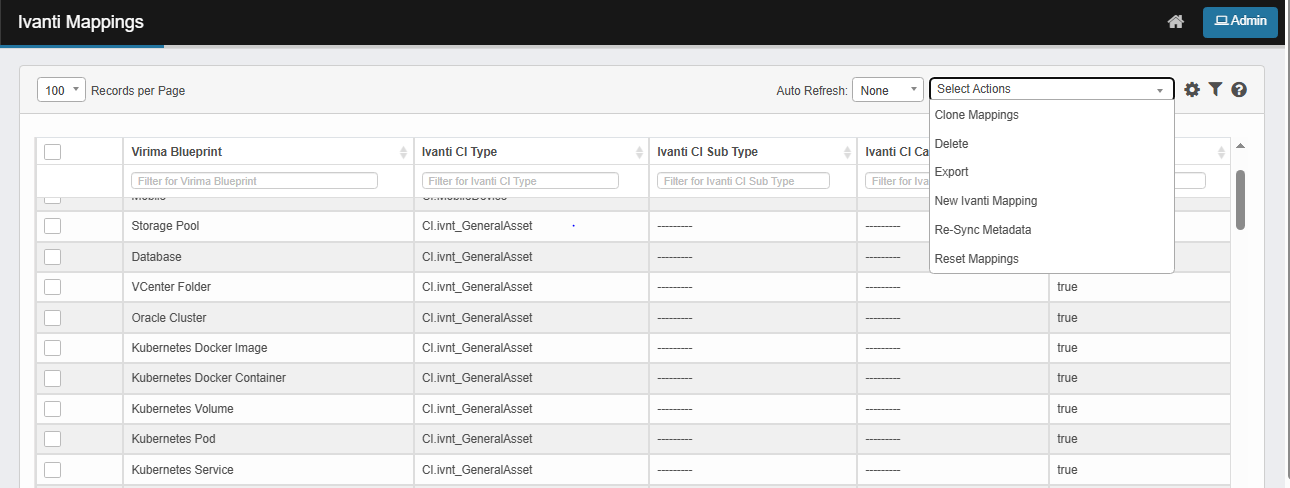
From the Select Actions drop-down list, choose New Ivanti Mapping. |
|
2.
|
From the drop-down lists, select the Ivanti CI Type, SubType and Category. |
|
3.
|
Click Add New Sub Type, Add New Ivanti Sub Type window displays. |
|
4.
|
Search and select the new sub Ivanti sub type. |
|
5.
|
Is Enabled status indicates whether the mapping is active (true/false). A blueprint will only copy from Virima to Ivanti if its mapping has the "Is Enabled" status set to True. |
|
6.
|
For the Virima Blueprint, enter a Property and Operator. |
|
7.
|
Choose the Virima Blueprint from those available in the drop-down list. |
|
8.
|
To include additional property mapping(s), click "and" or "or" and enter the additional mapping details. |
|
9.
|
Under Ivanti Property Mappings: |
|
b.
|
From the drop-down lists, select the Virima and Ivanti Properties. |
|
c.
|
Enter a property Value. |
|
d.
|
Check to apply the Correlator option. |
|
e.
|
When you select Correlator, it checks for duplicates. Only one value will be copied or moved. If duplicates include empty values, the sync will fail for that property. |
|
f.
|
Check to apply the Reverse Sync option. |
|
g.
|
Select the Reverse Sync option if you want to copy values from Ivanti to Virima for the mapped property during synchronization. |
|
10.
|
When all selections/entries are made, click the Add button. |
Clone Mappings
|
1.
|
From the Select Actions drop-down list, choose Clone Mapping. |
|
2.
|
Use the checkboxes to select the records you want to clone. |
|
3.
|
The selected mappings will be duplicated and added to the list. |
Re-Sync Metadata
|
1.
|
From the Select Actions drop-down list, choose Re-Sync Metadata. |
|
2.
|
Use the checkboxes to select the records you want to re-sync. |
|
3.
|
This action will re-pull the latest metadata and mapping details from the connected Ivanti instance. |
|
4.
|
It ensures that any recent updates or changes in Ivanti are accurately reflected in the system. |
Reset Mapping
|
1.
|
From the Select Actions drop-down list, choose Reset Mapping. |
|
2.
|
Use the checkboxes to select the records you want to Reset. |
|
3.
|
This action will reset all mappings to their default configuration. |
Edit Mapping
| |
Not all functions include an option to edit record line items shown in the main window. |
|
1.
|
Navigate to the window containing the record to edit. |
|
2.
|
Click the line containing the record. The applicable window or dialog box displays. |
|
3.
|
Make the necessary modifications. |
|
4.
|
Click Save or Add, as applicable. |
Delete Mapping
| |
Deleting is a permanent action and cannot be undone. Deleting may affect other functionality and information in the application such as data in configured reports, fields in windows, selectable options, etc. Therefore, be sure to understand the potential effects before making a deletion. |
|
1.
|
Click the line that contains the item to delete. |
|
2.
|
From the Select Actions drop-down list, choose Delete. If a confirmation message is displayed, type Delete and click Deleteto confirm. |
Other Functions and Page Elements