Create an Object Schema in Jira
You can create a new Object Schema directly from Virima:
-
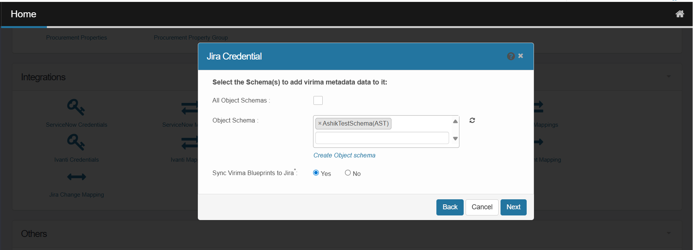
Go to the Schema Wizard in Jira Credentials.
-
Select Create Object Schema.
-
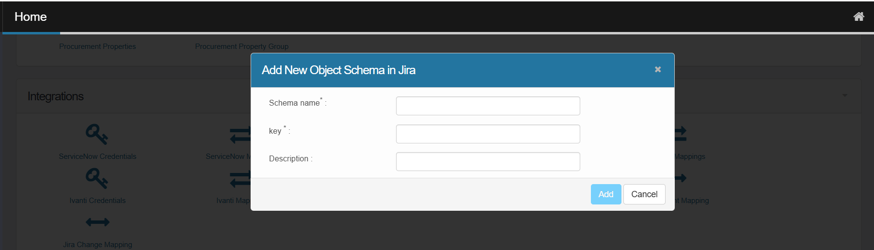
In the Add New Object Schema wizard, enter:
-
Schema Name (mandatory)
-
Key (mandatory, 2–10 alphanumeric characters only)
-
Description
-
-
Select Add.
The schema is added to Jira and appears in the Schema Wizard list.
Jira Credentials
Use this function to specify the credentials for the Jira domain.
| 1. | In the main window, click Admin > Integrations > Jira Credentials. |
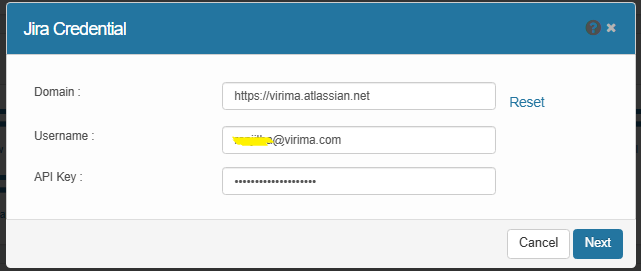
| 2. | Enter a Username, the applicable Domain and API Key. |
| 3. | Click Next. |
| 4. | Choose one or both: |
| 5. | Click Next. |
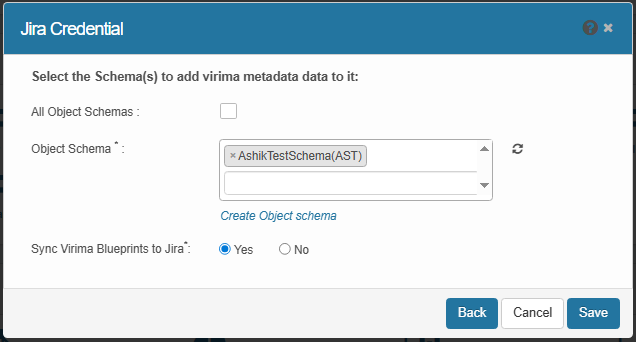
| 6. | Asset management setup: |
| 7. | Service management setup: |
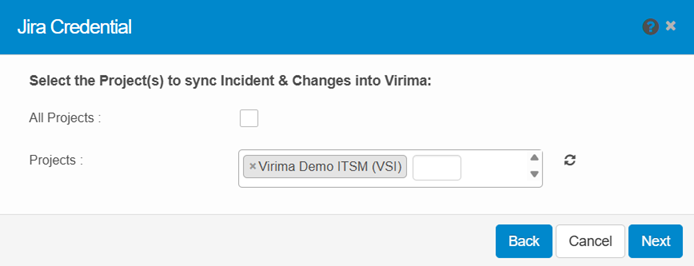
| 8. | Select All incident type issues or choose specific types. |
| 9. | Select Incident type issues, choose how to retrieve issues by clicking Assets or Custom (link Asset Name to Jira incidents or map properties), and click Next.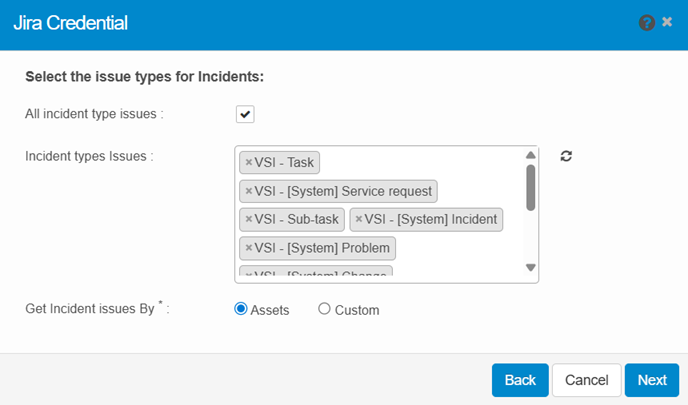 |
| 10. | Select All change type issues or choose specific types. |
| 11. | Select Change types issues, choose how to retrieve change issues by clicking Assets or Custom (link Asset Name to Jira changes or map properties), and click Save.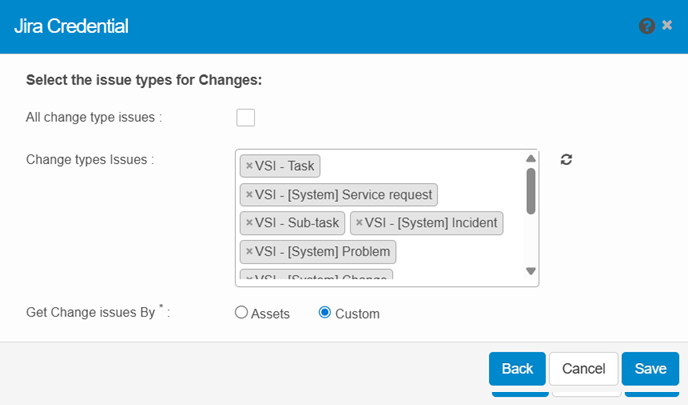 |
| 12. | A popup will confirm the process. You will receive an email notification once it finishes. Select Yes to confirm. |
Create an Object Schema in Jira
You can create a new Object Schema directly from Virima:
-
Go to the Schema Wizard in Jira Credentials.
-
Select Create Object Schema.
-
In the Add New Object Schema wizard, enter:
-
Schema Name (mandatory)
-
Key (mandatory, 2–10 alphanumeric characters only)
-
Description
-
-
Select Add.
The schema is added to Jira and appears in the Schema Wizard list.
Related Topics