Cherwell New Mapping
Use this function to enter the details for mapping properties between Virima and Cherwell.
|
1.
|
In the main window, click the gear icon and select Integrations > Cherwell Mappings. |
The Cherwell Mappings window displays.
|
2.
|
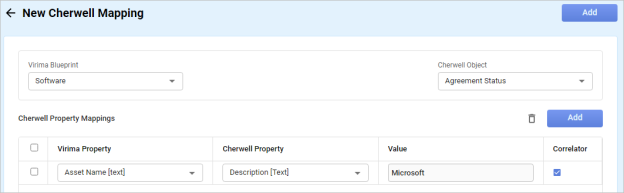
To create a new mapping, click New Mapping. The New Cherwell Mapping window displays. |
|
3.
|
In the Virima Blueprint field, click the drop-down list and select the applicable blueprint. |
|
4.
|
In the Cherwall Object field, click the drop-down list and select the applicable object. |
|
5.
|
When the selections are made, click Add. |
|
6.
|
In the Virima Property field, click the drop-down list and select the property to map to the Cherwell Propery. |
|
7.
|
In the Cherwell Property field, click the drop-down list and select the property to map to the Virima Property. |
|
8.
|
In the Value field, type the value that applies to both properties. |
|
9.
|
To use a correlator, select Correlator.
|
|
10.
|
To remove a mapping, select the item in the list of mappings and click the trashcan icon. |