Mailbox Configuration
Use this function to configure functional account set-up for valid email addresses to exchange information and further to be used for receiving alerts.
| 1. | In the main window, click Admin > Event Management > Mailbox Configuration. The Mailbox Configuration window displays. 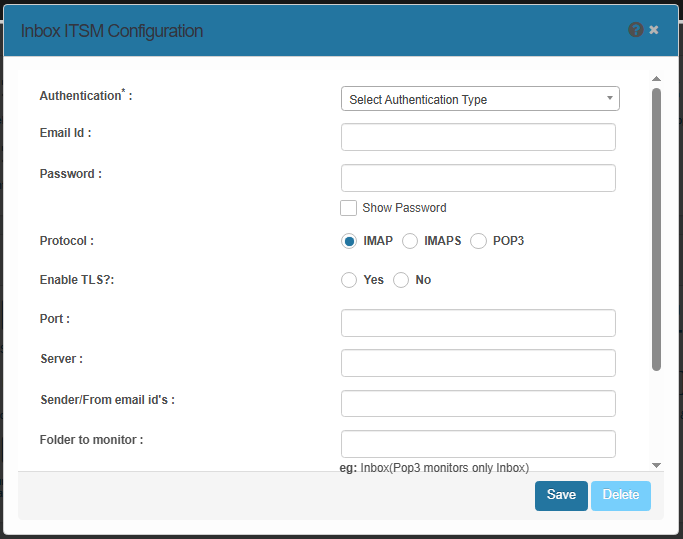 |
| 2. | Complete the fields, referring the following: |
Authentication: Select an authentication type from the drop-down list.
Email ID: Enter the email ID of the receiver.
Password: Enter the corresponding password for the Email ID. Click Show Password to view the entered password.
Protocol: Select the required/existing protocol. Options include IMAP, IMPS, and POP3.
Enable TLS Parameter: Select Yes or No to enable or disable TLS encryption.
Port: Check to view and validate the entered password.
Protocol: Select the appropriate email Protocol from the provided Protocol options.
Server: Enter the IP address of the email server.
Port: Enter the port number assigned to the selected protocol.
Server: Enter the name of the folder to monitor. This folder must be present in the mailbox--for example, Inbox, Sent, Draft, and so forth.
Send/From Email IDs: Enter the email ID of the sender
Folder to Monitor: Enter the name of the folder(s) in the email application to be monitored.
Monitoring Frequency in Minutes: Enter how often (in minutes) the email should be monitored.
Enable Monitoring: When selected, begins the folder monitoring process.
Use Proxy : When selected, enables use of a proxy server. Enter the Host, Username, Password, and Port for the proxy.
| 3. | When all selections/entries are made, click Add |